

Disabling passwords and two-factor authentication for local users in Authentik#
In some scenarios, using local passwords and two-factor authentication (2FA / MFA) in Authentik is redundant or even undesirable. This can apply to various scenarios, but for home use, constant authentication is clearly excessive.
In this article I’ll describe the process of properly disabling password authentication and MFA for local users in Authentik, while everything stays the same for external IPs.
How Authentik handles authentication#
Authentication in Authentik is built on Flows and Stages:
- A Flow is a login scenario;
- A Stage is a single step within that scenario;
- Stages run strictly in the order specified;
- If a stage isn’t present in the flow, it doesn’t run at all.
It’s important to understand: Authentik has no global “enable/disable password” switch. Everything is controlled through flows.
The role of the Password Stage and MFA Stage#
- The Password Stage is responsible for checking the local password;
- The MFA Stage handles TOTP, WebAuthn, and other factors.
If:
- the Password Stage is absent → the password is not requested or checked;
- the MFA Stage is absent → the second factor is not used.
Disabling two-factor authentication in Authentik for local users who access Authentik via its IP address#
- Go to Customisation - Policies
- Create - Expression Policy
- Give the policy a name.
- In the Expression Policy section, write
return ak_client_ip.is_private. - Create
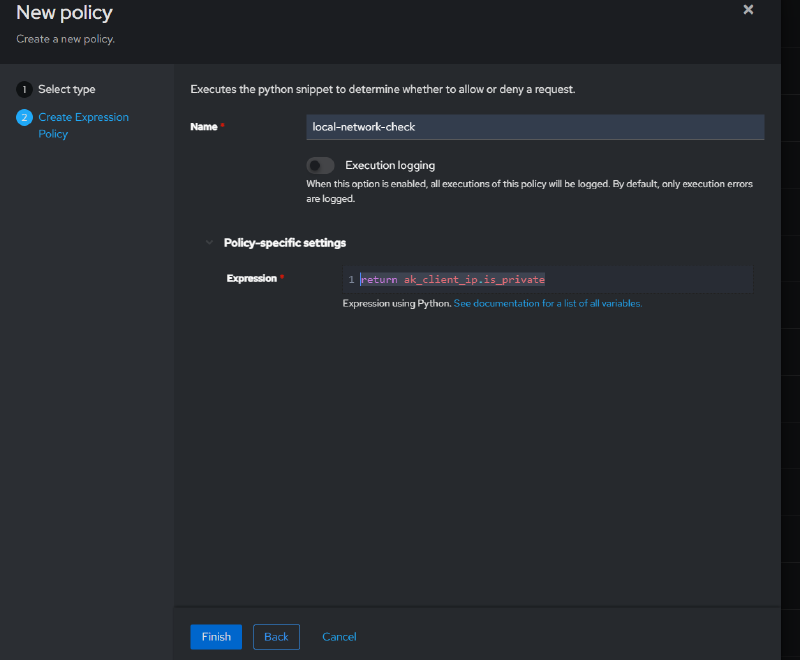
You can read more in the official documentation
- Go to Flows and Stages - Flows
- Select our
default-authentication-flow>Stage Bindings - Click on
default-authentication-mfa-validation
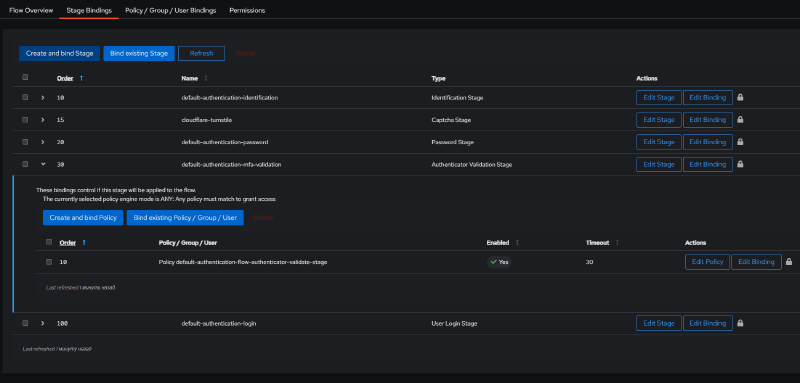
- Click
Bind existing Policy - In the window that appears, select the policy created in step 4
- Make sure to enable both
enableandnegate result
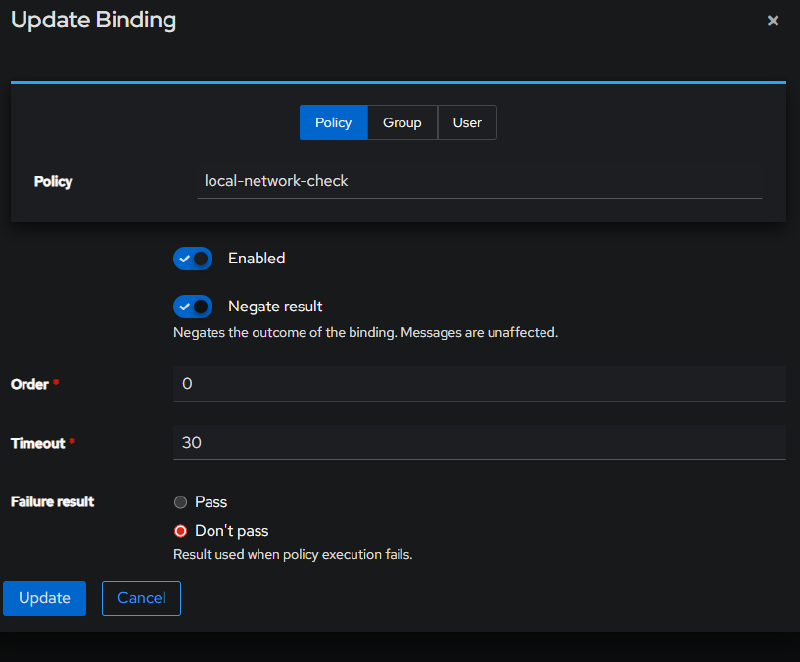
- Create
Now, if you access your Authentik instance not via its subdomain, but via its IP address:port, you won’t need to enter a username and password.
Disabling the password requirement when local users authenticate from local IPs on the local network#
The general approach is the same as in the previous section.
- Go to Flows and Stages - Flows
- Select
default-authentication-flow>default-authentication-flow>Stage Bindings. - Click Edit Stage next to
default-authentication-identification. - In the Password Stage section, make sure it’s set to a dash. This is needed in case you had username and password entered on the same page. If so, deactivate that feature and restore the corresponding stage (
default-authentication-password).
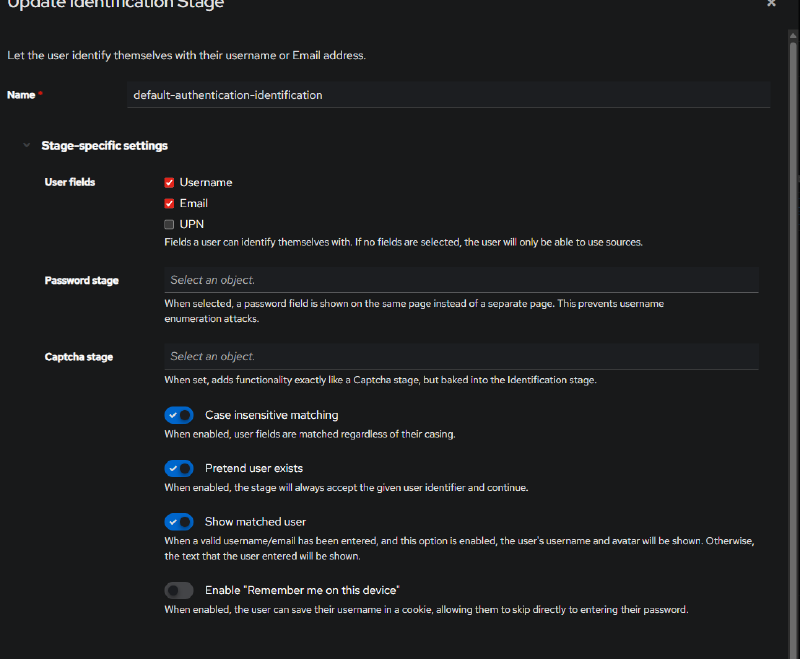
- Select Bind existing Stage
- For the
Stage, select ourdefault-authentication-password - Now click the arrow next to
default-authentication-password>Bind existing Policy - Do as shown in the screenshot above - bind the same Expression Policy with
enableandnegate result