
If you found this article useful and would like to thank the author, you can do so via the corresponding link on boosty
I’m assuming you already have Authentik installed and configured (see the general overview and initial setup articles). In this article I’ll talk about setting up email notifications in Authentik. They let you receive notifications about important events in the system - such as user logins, logouts, and authentication errors. This is useful for security monitoring and responding promptly to suspicious activity.
For this setup, and for Authentik to work correctly in general, you need to have already configured your mail server settings in the .env environment variables file.
You can verify that SMTP is configured correctly with the following command:
docker exec authentik_worker ak test_email your_email@domain.comThe authentik_worker container must be running, and the AUTHENTIK_EMAIL_* variables must be set correctly.
The application settings described in this article are accurate as of the time of writing.
Log in to Authentik as an administrator and go to:
Events → Notification Rules

In this article I’ll show notification setup for only three basic events, which I consider the most important from a security standpoint. If needed, you can configure any other events you like.
Click Create. In the window that appears, give the rule a name that makes sense to you. In my case, this is a rule for monitoring logins to Authentik.
In the Groups section, specify which group’s users will receive the notifications. In my case, this is authentik Admins.
In the Transport section, choose the notification delivery mechanism. In this case, email is used.
In the Severity section, choose the importance level of the event. I use the Alert value, then click Create.

Go to the rule we just created and click Create and Bind Policy.

In the window that appears, select Event Matcher Policy.

Give the policy a name (for example, login). In the Action section, choose the event that will trigger the notification. In my case, this is Login.
The remaining parameters depend on your requirements - they’re described in more detail in the official documentation. If your goal is simply to get notified about the event without additional filtering, you can leave them unchanged, as shown in my screenshot.

In the next window, set the processing order for the policy. I start with a value of 10 and click Finish.
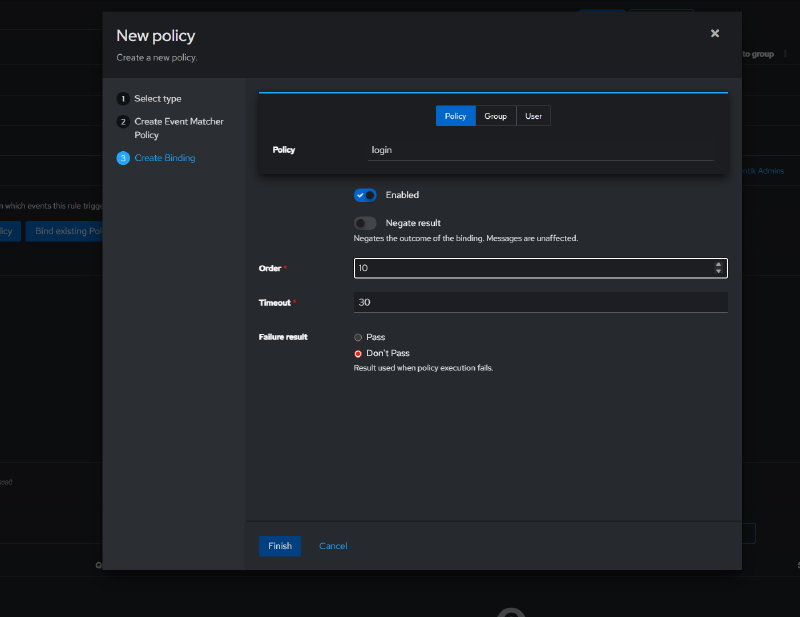
To keep track of key user actions (or potential attackers), I create two more similar policies. The only difference is the event type:
LogoutFailed Login
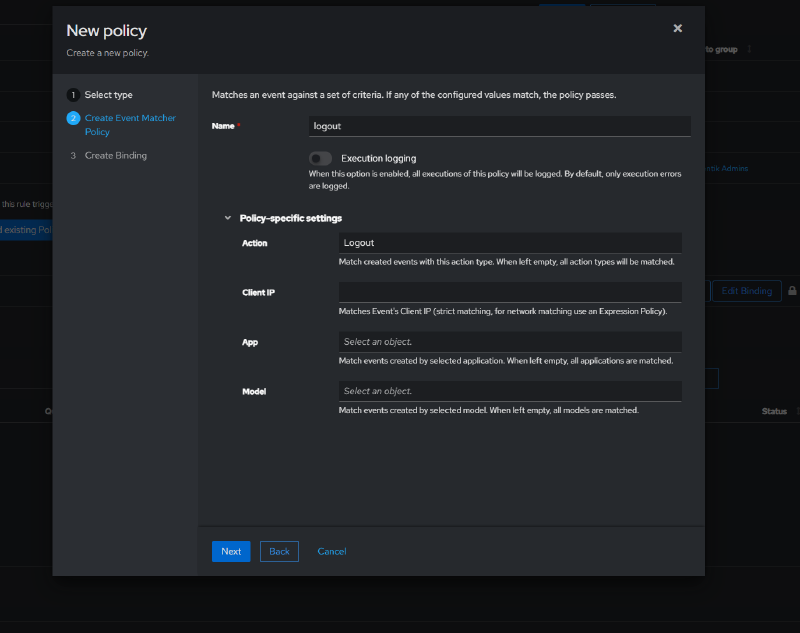
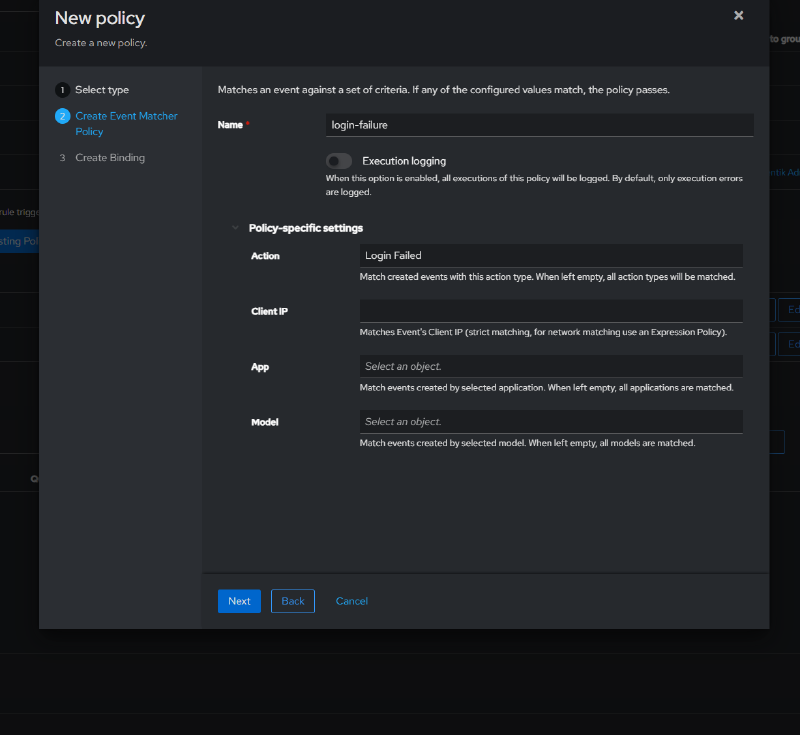
As a result, the list of bound policies looks roughly like this:
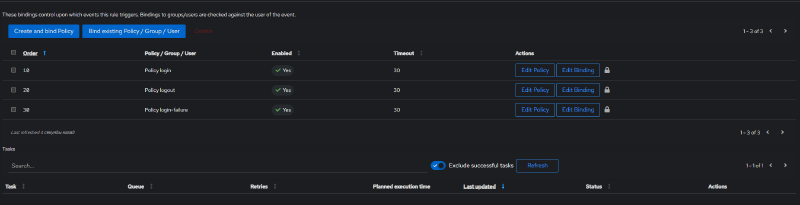
Once configured, it’s recommended to run a test. To do this, you can log out and log back into Authentik, and also try logging in with incorrect credentials. If everything is set up correctly, an email notification will arrive for each corresponding event.