
If you’re tired of living in the terminal, Portainer isn’t cutting it for you anymore, and you want to manage containers quickly through a browser - Dockhand might be exactly what you need.
I’ve watched a lot of Portainer replacements come and go. Most of them never quite catch up to its feature set. Real competitors are actually pretty thin on the ground:
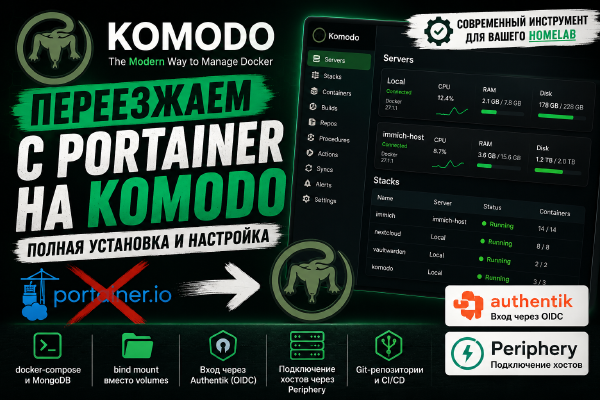
- Komodo - fully open source, but the developers are clearly aiming at the enterprise segment.
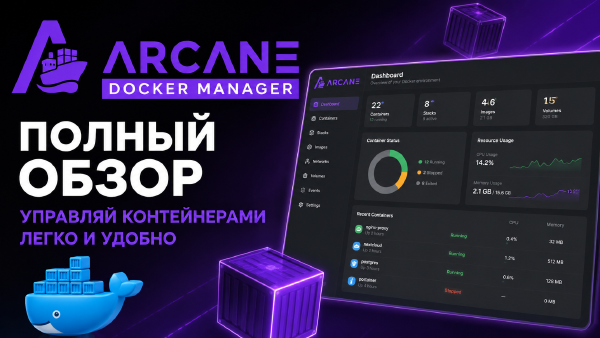
- Arcane - haven’t personally tried it, so no opinion there.
- Dockge - not really a full replacement: it’s aimed squarely at homelabbers, and the feature set is noticeably lighter compared to tools built for a professional environment.
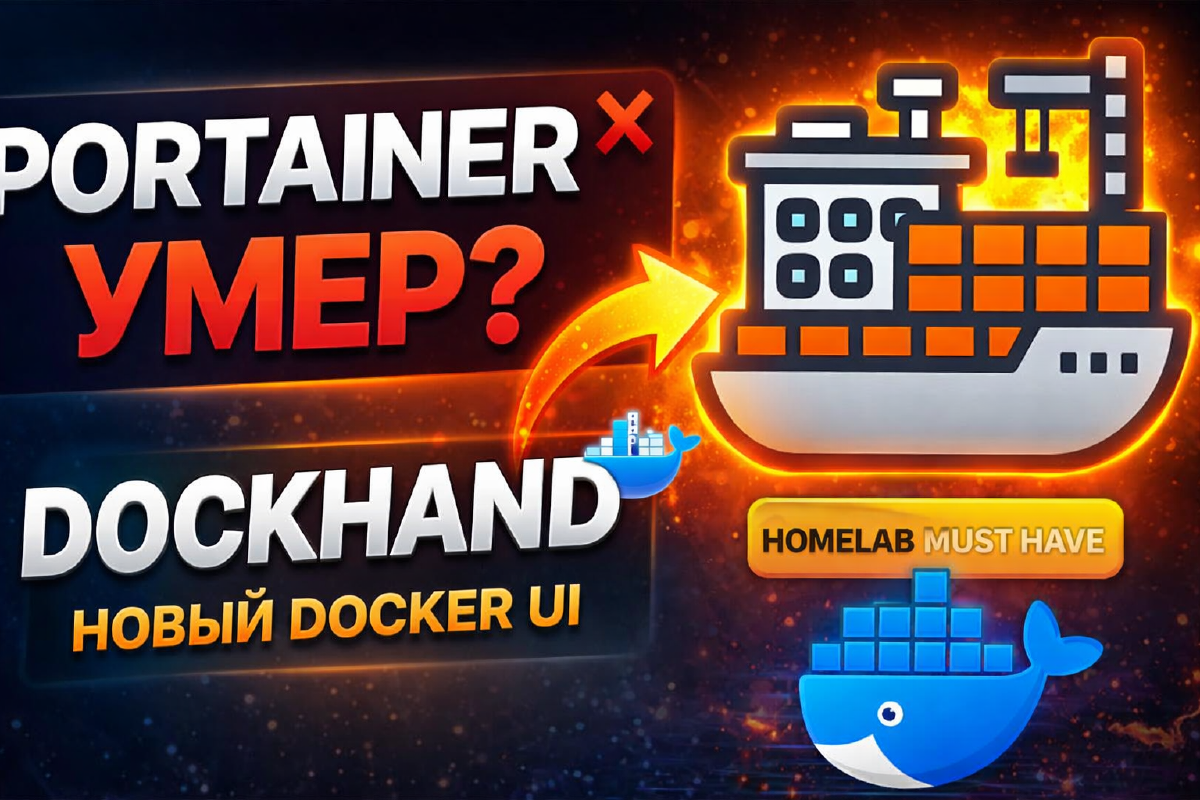
Which brings us to today’s subject - Dockhand, a lightweight, minimalist web UI for Docker that fits nicely into any homelab and works particularly well paired with the Traefik reverse proxy.
What Dockhand can do#
Dockhand isn’t just a Docker web UI - it’s a proper container infrastructure management tool built around convenience, automation, and security. Here’s what stood out as actually useful, not just a full feature dump.
Container management#
The basics are all covered: start, stop, restart, remove containers, create new ones with advanced configuration, inspect processes and environment variables inside a running container. There’s a built-in web terminal - no more SSHing in for a quick check - plus browsing and transferring files right from the interface. It’s a genuine replacement for the day-to-day CLI operations, no need to keep a terminal window open at all times.
Docker Compose and stacks#
Multi-container apps are handled well: full Compose and stack support, including stacks that were created outside the app itself (I show how in the video). There’s a visual Compose editor so you don’t have to hand-write YAML, deploying stacks straight from Git repos with automatic sync on push via webhooks, re-pulling images and forced redeploys, importing projects from other container managers, and a scheduler for updates and deployments. A solid option if you’re going the GitOps route in your homelab.
Observability#
Live CPU and memory metrics per container, real-time streaming logs with ANSI colors, an activity log, disk usage monitoring, and notifications over email or webhooks - all without spinning up Prometheus and Grafana (I’ll cover setting up that whole stack - LGTM, Loki + Grafana + Tempo + Mimir - in a separate article, coming soon) just for a handful of containers. For a home server where a full monitoring stack would be overkill, this is exactly the right amount of visibility.
Security#
OIDC/SSO with any provider comes free; LDAP/Active Directory integration and full RBAC are paid features. There’s also built-in vulnerability scanning via Grype/Trivy (more on that below - in practice it’s not as clean as it sounds on paper). Plugging it into an existing IAM setup is straightforward.
Multi-host management#
Dockhand isn’t limited to a single Docker host: connect through a local socket, manage remote hosts over TCP+TLS, a dedicated Hawser agent for getting around NAT and firewalls, fast switching between environments, and a separate dashboard tile per environment. Handy if you’re running more than one server and don’t want a dozen browser tabs open.
UI customization#
Light/dark theme, adjustable font size, column management (hide/show/reorder), resizable dashboard tiles, saved personal preferences. The interface genuinely adapts to you, rather than the usual “this is how it looks, deal with it.”
Transparency and licensing#
The source is fully open on GitHub, with a move to Apache 2.0 planned for 2029 (right now it’s under the Business Source License - I go into the details of that in the comparison article with Arcane and Komodo). “Trust, but verify” actually works here, since the code is right there to read.
System requirements#
| Component | Requirement |
|---|---|
| Docker Engine | 20.10 or newer |
| Docker API | 1.41 or newer |
| Memory | 512 MB minimum, 1 GB recommended |
| Browser | Chrome, Firefox, Safari, Edge |
| Database | SQLite (default) or PostgreSQL 14+ |
Before you install#
Dockhand uses /var/run/docker.sock, which means the container gets full access to Docker - effectively root on the system. Only run it on a trusted network, and lock access down behind a reverse proxy with authentication (Traefik + Authelia/Authentik, for example).
The docker-compose I used in the video:
services:
  dockhand:
    image: fnsys/dockhand:latest
    container_name: dockhand
    restart: unless-stopped
    #ports:
    #  - 3000:3000
    volumes:
      - /var/run/docker.sock:/var/run/docker.sock
      - /home/stilicho/docker/dockhand/data:/app/data
    networks:
      proxy:
    labels:
      - "traefik.enable=true"
      - "traefik.http.routers.dockhand.entrypoints=web"
      - "traefik.http.routers.dockhand.rule=Host(`dockhand.stilicho.ru`)"
      - "traefik.http.routers.dockhand.middlewares=dockhand-https-redirect"
      - "traefik.http.middlewares.dockhand-https-redirect.redirectscheme.scheme=https"
      - "traefik.http.routers.dockhand-secure.entrypoints=websecure"
      - "traefik.http.routers.dockhand-secure.rule=Host(`dockhand.stilicho.ru`)"
      - "traefik.http.routers.dockhand-secure.tls=true"
      - "traefik.http.routers.dockhand-secure.service=dockhand"
      - "traefik.http.services.dockhand.loadbalancer.server.port=3000"
      - "traefik.docker.network=proxy"

networks:
  proxy:
    external: true
A quick breakdown:
/var/run/docker.sock- the Docker API access mentioned in the warning above; without it the app can’t manage containers at all.portscommented out - uncomment it and you get direct access without Traefik, which is sometimes faster for testing, but not something to leave in place long-term.- HTTP/HTTPS routers - the usual HTTPS-redirect-plus-TLS-termination pattern you’ll see across every Traefik-fronted service on this site.
loadbalancer.server.port=3000- Traefik grabs the container’s IP on theproxynetwork and talks to that port directly inside the Docker network, not throughlocalhostor publishedports.
I run it on the built-in SQLite, but it works fine with Postgres too. More deployment options are on the official site.
First launch#
After starting the container and heading to its subdomain, I was genuinely surprised there’s no initial user-registration screen. From where I stand, that’s not the safest default - it would be better to force whoever’s setting it up to create an admin account rather than leave that door open. Hopefully the developers add this at some point.
Instead you land on an empty dashboard, since no environment is connected yet.
Dashboard#
The dashboard gives you a clear, real-time overview of all your Docker environments, built around tiles - one per environment. Tiles can be resized, moved around, and arranged to fit your own workflow, so the interface actually adapts to what you’re doing instead of the other way around.
Environment tiles#
Each environment shows up as its own tile with a name, an icon, and a connection status - so you can tell at a glance whether it’s reachable, a small thing that adds up to a genuinely pleasant interface.
The containers block shows running, stopped, and total counts, plus health and resource usage - enough to gauge system load at a glance, which is genuinely useful.
There’s also a health-status indicator: warnings for problems, plus explicit tags for containers stuck in unhealthy or restarting. Saves you from opening every container’s logs one by one just to find what’s broken.
Update checking#
Dockhand checks for image updates against their repositories - in my opinion, this is the killer feature, and it’s what lets me retire a separate Diun instance. You can turn on auto-updates too, but that one’s for enthusiasts only: pulling a new version automatically, without reading the changelog first, can just as easily hand you a broken container as a fixed one. Getting notified that an update exists is always useful; trusting it to update itself is your call.
Vulnerability scanning#
There’s a built-in vulnerability scanner for containers. It sounds great on paper, but in practice it’s not that useful: built-in scanners will almost always find something (a topic for its own article), which either panics newcomers or gets the system to flag a perfectly healthy container as compromised. It’s more of a checkbox feature than a real security tool - though to be fair, Grype and Trivy underneath are legitimate scanners, you just shouldn’t take their output at face value for someone else’s Docker image without checking it yourself.
Screenshots#


Bottom line#
Dockhand’s dashboard gives you a full overview of every environment in one place, fast problem diagnosis, a clear picture of load and activity, and a UI you can actually make your own.
Bottom line - Dockhand is a solid Portainer replacement for a home setup, and a good pick if what you want is a balance between simplicity and functionality rather than a full enterprise platform with all the setup overhead that comes with it.