
If you enjoyed this article, you can become a sponsor on Boosty.
What is Dozzle#
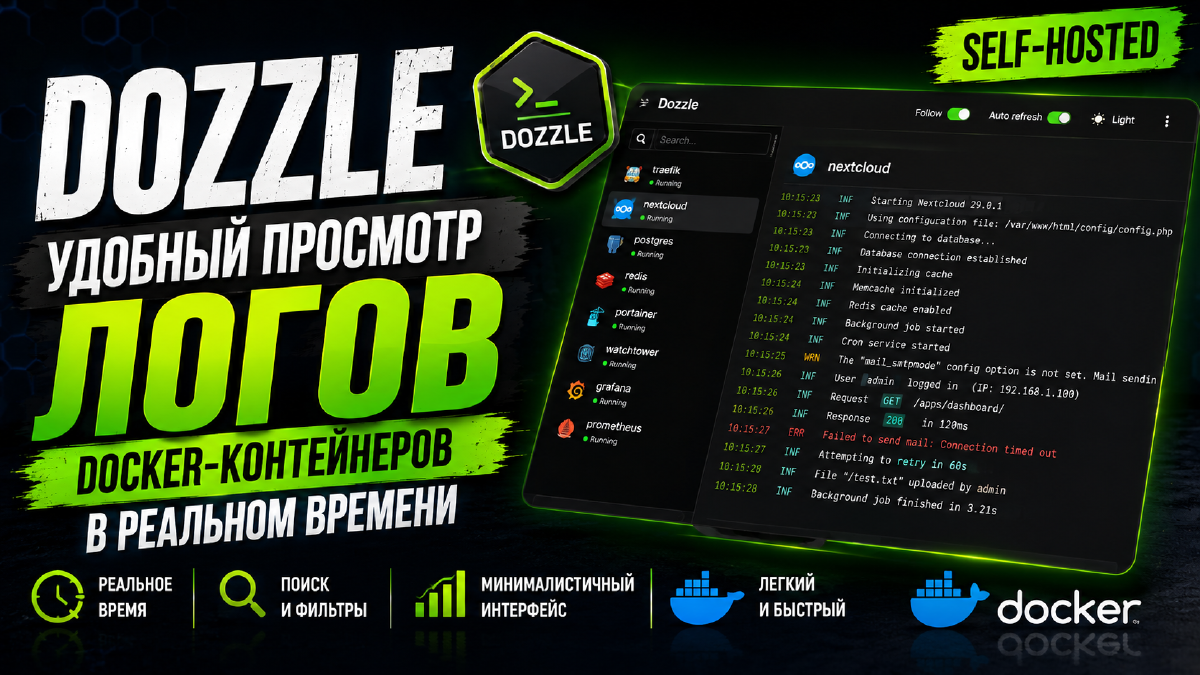
Dozzle is a lightweight open-source web app for viewing Docker container logs in real time, with no database, no complex configuration, and no log storage anywhere other than Docker itself.
Project site: dozzle.dev
Source code: github.com/amir20/dozzle
Essentially, Dozzle is a convenient web wrapper around docker logs -f - except for all the containers on the host at once, with search, highlighting, and a nice interface that’s easy to navigate, instead of a bare terminal.
Key features:
- Real-time viewing of logs for all containers through a browser
- Search and filtering by text and regular expressions
- Highlighting of log levels and pretty-printing for JSON logs
- Container stats - CPU, memory, network
- Start/stop/restart containers directly from the interface (optional)
- Download logs as a file
- Multi-host mode - a single Dozzle instance can show logs from several servers at once
Why you’d want Dozzle#
If your server runs more than a couple of containers, sooner or later you’ll need to quickly check what’s going on - with Nextcloud, with Authentik, with a service that just crashed, and so on. There aren’t many options:
- SSH in and run
docker logs -f <container>for one container at a time; - set up a full monitoring stack (Loki + Grafana, ELK) - slow, heavy, and possibly overkill for a home server, given how much there is to configure;
- install Dozzle - one small container that immediately gives you a web UI with all the logs on the host.
Dozzle isn’t a replacement for proper long-term logging (a Loki/Mimir/Grafana stack is undoubtedly a better fit for that - I’ve got an article on setting one up in the works, link coming once it’s published) - it’s a fast, lightweight tool for “see what’s happening right now,” and for a home server that’s usually more than enough.
By the way, if you’ve already read the Diun article - these two make a great pair: Diun tells you when a new image version is out, and Dozzle lets you immediately check the container’s logs after updating it, to confirm everything came back up cleanly.
Installing via Docker Compose#
The minimal docker-compose.yml used in the video:
services:
  dozzle:
    image: amir20/dozzle:latest
    container_name: dozzle
    volumes:
      - /var/run/docker.sock:/var/run/docker.sock:ro   # read-only access to the Docker API
    environment:
      - TZ=Europe/Moscow
      - DOZZLE_NO_ANALYTICS=true       # disable anonymous telemetry
      - DOZZLE_TAILSIZE=300            # how many recent lines to load on open
    restart: unless-stopped
    security_opt:
      - no-new-privileges:true
    networks:
      proxy:
    labels:
      - "traefik.enable=true"
      - "traefik.http.routers.dozzle.entrypoints=web"
      - "traefik.http.routers.dozzle.rule=Host(`dozzle.domain.ru`)"
      - "traefik.http.middlewares.dozzle-https-redirect.redirectscheme.scheme=https"
      - "traefik.http.routers.dozzle.middlewares=dozzle-https-redirect"
      - "traefik.http.routers.dozzle-secure.entrypoints=websecure"
      - "traefik.http.routers.dozzle-secure.rule=Host(`dozzle.domain.ru`)"
      - "traefik.http.routers.dozzle-secure.tls=true"
      - "traefik.http.routers.dozzle-secure.service=dozzle"
      - "traefik.http.services.dozzle.loadbalancer.server.port=8080"
      - "traefik.docker.network=proxy"

networks:
  proxy:
    external: true
Start the service:
docker compose up -dAfter starting - open https://dozzle.domain.ru in your browser. No additional configuration is needed at this stage - Dozzle automatically discovers all containers running on the host via the Docker socket and immediately shows their logs.
The Docker socket (/var/run/docker.sock) grants full control over Docker on the host. Mount it strictly as :ro, as in the example above, and for extra protection consider a socket-proxy such as tecnativa/docker-socket-proxy - more on that in the “Security” section below.
Traefik compatibility: compression breaks live logs (SSE)#
Dozzle streams logs in real time using Server-Sent Events (SSE) - a one-way HTTP stream of data from the server to the browser. Traefik handles WebSocket upgrades automatically, with no extra configuration needed, but SSE has a catch: if you have the compress middleware enabled (often added globally to compress responses for every service), it can break this particular stream - logs in the interface simply stop updating in real time, even though Dozzle itself keeps running without errors.
To fix this, exclude text/event-stream from compression:
http:
  middlewares:
    middlewares-compress:
      compress:
        excludedContentTypes:
          - text/event-stream
Then apply this middleware to the Dozzle router (or, if compress is already shared across all your services, just add the exclusion to your existing configuration).
A typical labels block for the Dozzle service, accounting for this, looks something like this:
services:
  dozzle:
    image: amir20/dozzle:latest
    labels:
      - traefik.enable=true
      - traefik.http.routers.dozzle.rule=Host(`dozzle.domain.ru`)
      - traefik.http.routers.dozzle.entrypoints=websecure
      - traefik.http.routers.dozzle.tls.certresolver=letsencrypt
- traefik.http.services.dozzle.loadbalancer.server.port=8080If you don’t use the compress middleware globally, you don’t need to change anything - this issue only shows up when it’s in use. But if, after setting up Dozzle, the logs stop updating in real time and you have to refresh the page manually, this is the first thing to check.
Setting up authentication#
By default, Dozzle doesn’t require a login - that’s fine if the service is only reachable inside your own network, or already sits behind a reverse proxy with its own authentication. But Dozzle also has its own built-in options.
Simple authentication#
Create a user using the Dozzle image itself:
docker run --rm -it -v ./data:/data amir20/dozzle generate --name "Admin" --email admin@domain.ru adminThis creates a data/users.yml file with a hashed password. In docker-compose.yml, add:
    volumes:
      - /var/run/docker.sock:/var/run/docker.sock:ro
      - ./data:/data
    environment:
      - DOZZLE_AUTH_PROVIDER=simple
Authentication via a reverse proxy (forward-proxy)#
If you already have Authentik, Authelia, or Keycloak set up (the blog has a whole Single Sign On series) - it makes more sense not to set up yet another separate login, and instead route Dozzle through the same proxy’s forward-auth:
    environment:
      - DOZZLE_AUTH_PROVIDER=forward-proxy
      - DOZZLE_AUTH_HEADER_USER=Remote-User   # the header carrying the username that your proxy passes through
This way, Dozzle trusts the authentication already performed at the Traefik/Authentik level, and won’t ask for a separate password.
Interface and features#
Once you open the web interface, you get:
- a list of all containers on the host with a status indicator (running/exited/restarting);
- a live log stream with auto-scroll and on-the-fly text/regex search;
- highlighting of log levels (
error,warn,info, etc.) and automatic formatting of JSON log lines into a readable form; - a stats tab for each container - CPU, memory, network, disk;
- downloading a container’s log as a file for a chosen time range;
- with Actions enabled (see below) - buttons to start, stop, and restart a container right from the interface.
Actions - the container control buttons - are disabled by default and need to be enabled separately:
    environment:
- DOZZLE_ENABLE_ACTIONS=trueOnly enable Actions if you actually need to manage containers straight from Dozzle, and make sure the service is behind authentication (simple or forward-proxy from the section above) - otherwise anyone who gets access to the web interface can stop or restart any container on the host.
Multi-host mode (agents)#
If you have more than one server (say, a Proxmox cluster with a couple of nodes plus a separate mini PC) - you don’t need to run Dozzle on every single one. You can install an agent on the remote hosts and connect them to one main Dozzle instance.
On the remote host:
services:
  dozzle-agent:
    image: amir20/dozzle:latest
    container_name: dozzle-agent
    command: agent
    volumes:
      - /var/run/docker.sock:/var/run/docker.sock:ro
    ports:
      - 7007:7007
    restart: unless-stopped
On the main host, where the web interface runs, add a variable pointing to the agent’s address:
    environment:
      - DOZZLE_REMOTE_HOST=tcp://agent_IP:7007|Host-name-in-the-UI
You can list several agents separated by commas - Dozzle’s interface will then show a switcher between hosts, and logs from all your servers will be available from a single browser window.
Security#
- Mount
docker.sockonly as:ro- Dozzle doesn’t need write access for basic log viewing. - If you plan to use Actions (container control) - make sure authentication is enabled, otherwise it’s an open door into managing your entire Docker host.
- For extra isolation, you can put a socket-proxy like
tecnativa/docker-socket-proxybetween Dozzle and the socket, which restricts exactly which Docker API endpoints are exposed. - As with any service that has access to the Docker socket, don’t expose Dozzle directly to the internet without a reverse proxy, SSL, and authentication.
Pros and cons#
Pros#
- Free and open source.
- Genuinely zero-configuration - install it and you immediately see logs.
- Lightweight - minimal resource usage, a great fit for a homelab.
- Multi-host mode via agents - logs from all your servers in one window.
- Built-in authentication, with the option to lock it down further, including forward-proxy support for an SSO you already have.
Cons#
- Logs aren’t stored separately - Dozzle just shows what Docker itself physically keeps, and the history disappears after log rotation or container removal.
- Not a replacement for a full logging stack (Loki/Grafana, ELK) for long-term storage and complex analytics.
- Actions is a powerful feature that requires careful authentication setup, or it becomes a security risk.
Getting started#
- Spin up a container using the
docker-compose.ymlabove, mountingdocker.sockas:ro. - Open the web interface and check that you can see logs for all containers on the host (you won’t see Traefik’s own logs there just like that).
- Set up authentication - simple via
dozzle generate, or forward-proxy via an SSO you already have. - If needed, enable
DOZZLE_ENABLE_ACTIONSto control containers from the interface. - If you have multiple servers, run
dozzle agenton the rest of them and connect them viaDOZZLE_REMOTE_HOST. - Put the service behind a reverse proxy with SSL, just like the other services on this blog.
Conclusion#
Dozzle is one of those tools you install once and afterwards can’t imagine how you ever lived without it (though, to be fair, you lived just fine). It’s not a substitute for full monitoring and doesn’t keep logs long-term, but it solves the main task - quickly seeing what a container is doing right now - without touching a terminal. It pairs nicely with Diun, which you may already know from my blog, and with management panels like Komodo or Dockhand - together they cover most of the day-to-day work of maintaining a Docker host (although, to be honest, they can show logs themselves too).