Why this is even needed#
After migrating all my compose files to Komodo, one unresolved problem remained: the docker-compose.yml files themselves still sit as plain text files on disk, with no change history, no backup of “what it looked like yesterday, before my mischievous hands decided to tweak something,” and no single shared repo holding the current version of the configuration. You edit a config directly in prod (yes, yes, we homelabbers have our own “prod” too, believe it or not!) - and if something goes wrong, there’s not just nothing to roll back to, you honestly don’t even remember where you started, or which version was actually still working before you decided to “improve” everything, which, in turn, led to the system being completely broken. I’m an imperfect human - forgive me, Nietzsche - so that’s exactly the kind of story I have.
This article covers my real-world migration - existing compose files, real domains, and a webhook that’s already live in production. If you haven’t worked with GitOps, Forgejo, or Komodo before and would rather walk through everything from scratch with every config parameter explained, start with GitOps for Homelab - Deploying Forgejo and Komodo From Scratch, then come back here to see how it looks in a real multi-server setup.
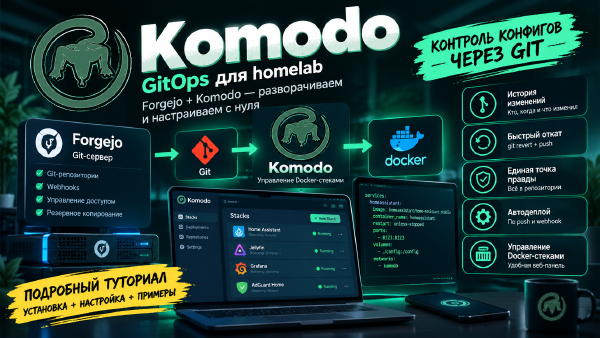
The solution - set up my own git server (Forgejo) and connect it to Komodo so that:
- every compose file change gets recorded in git;
- a
git pushautomatically gets pulled onto the server and only redeploys the stacks that actually changed; - all of this works not only on the main host, but on remote servers too (in my case - a second host running Immich, a third host running Nextcloud, and so on).
Below is the entire path from installing Forgejo to a working GitOps pipeline, along with the pitfalls I ran into (some of them twice), so you don’t have to.
Step 1. Installing Forgejo#
Forgejo is a fork of Gitea - a lightweight, self-hosted git server. It’s deployed as a regular compose stack. I already have a working Postgres database in a separate LXC container (managed via pgAdmin), so I connected Forgejo to it instead of spinning up yet another Postgres container alongside it. Below is how I did it on my own setup. In your case, if you don’t have a single shared database but separate databases per stack, you’ll just add the database settings to the compose file from the official documentation.
Database#
In pgAdmin, we create the role and database:
CREATE ROLE forgejo WITH LOGIN PASSWORD 'пароль';
CREATE DATABASE forgejo
  OWNER forgejo
  ENCODING 'UTF8'
  TEMPLATE template0;
Important point: if you create the database through the pgAdmin GUI without explicitly specifying TEMPLATE template0, you might get an error like new encoding (UTF8) is incompatible with the encoding of the template database (SQL_ASCII) - on some servers template1 is historically configured with a different encoding. As usual, I keep forgetting about this, but you don’t have to be like me!
Docker Compose with labels for the Traefik reverse proxy#
sudo nano docker-compose.yamlservices: # Declare the list of services Docker Compose should create.
server: # Service name within Compose. It can be referenced as "server".
image: codeberg.org/forgejo/forgejo:15 # Use the Forgejo version 14 image from the Codeberg registry.
container_name: forgejo # Explicitly set the Docker container name instead of the auto-generated Compose name.
environment: # Pass environment variables into the Forgejo container.
- USER_UID=1000 # UID of the user Forgejo uses to work with files in /data.
- USER_GID=1000 # GID of the group Forgejo uses to work with files in /data.
- FORGEJO__database__DB_TYPE=postgres # Tell Forgejo to use PostgreSQL as the database.
- FORGEJO__database__HOST=host_ip:5432 # PostgreSQL server address and port. Replace "host_ip" with the real IP address.
- FORGEJO__database__NAME=forgejo # Name of the PostgreSQL database created for Forgejo.
- FORGEJO__database__USER=forgejo # PostgreSQL username Forgejo uses to connect to the database.
- FORGEJO__database__PASSWD=${FORGEJO_DB_PASSWORD} # PostgreSQL password is taken from the FORGEJO_DB_PASSWORD variable defined outside this compose file.
restart: always # Docker will automatically restart the container if it stops, including after a host reboot.
networks: # Connect the container to the specified Docker networks.
- proxy # Connect Forgejo to the external proxy network, which Traefik uses to reach it.
volumes: # Declare persistent storage and bind mounts for the container.
- ./forgejo:/data # The ./forgejo directory next to the compose file is mounted to /data in the container; this is where Forgejo's data lives.
- /etc/localtime:/etc/localtime:ro # Pass the host's system local time to the container; ro prevents writing to the file.
ports: # Publish container ports directly on the Docker host.
- '3000:3000' # Host port 3000 is forwarded to Forgejo's HTTP port 3000.
- '222:22' # Host port 222 is forwarded to Forgejo's SSH port 22.
labels: # Docker labels used by Traefik for automatic discovery and routing configuration.
- "traefik.enable=true" # Allow Traefik to handle this container.
- "traefik.http.routers.forgejo.entrypoints=web" # Create an HTTP router for Forgejo on the web entryPoint, usually port 80.
- "traefik.http.routers.forgejo.rule=Host(`forgejo.example.com`)" # The router matches requests for the specified domain name.
- "traefik.http.middlewares.forgejo-https-redirect.redirectscheme.scheme=https" # Create middleware that redirects HTTP requests to HTTPS.
- "traefik.http.routers.forgejo.middlewares=forgejo-https-redirect" # Attach the created middleware to the HTTP router.
- "traefik.http.routers.forgejo-secure.entrypoints=websecure" # Create an HTTPS router on the websecure entryPoint, usually port 443.
- "traefik.http.routers.forgejo-secure.rule=Host(`forgejo.example.com`)" # The HTTPS router also serves the specified domain.
- "traefik.http.routers.forgejo-secure.tls=true" # Enable TLS for the HTTPS router.
- "traefik.http.routers.forgejo-secure.service=forgejo" # Tell the HTTPS router to use the Traefik service named forgejo.
- "traefik.http.services.forgejo.loadbalancer.server.port=3000" # Traefik should send requests from the proxy network to the Forgejo container's port 3000.
- "traefik.docker.network=proxy" # Explicitly tell Traefik to use the proxy Docker network to reach the container.
security_opt: # Additional container security settings.
- no-new-privileges:true # Prevent container processes from gaining additional privileges via privilege escalation mechanisms.
networks: # Declare the Docker networks used by the Compose services.
proxy: # Describe the network named proxy.
external: true # Tell Compose the network is already created separately and doesn't need to be created again.sudo nano .envFORGEJO_DB_PASSWORD=парольInfrastructure overview#
The layout of this Compose file looks like this:
                         ┌──────────────────────┐
                         │       Traefik        │
                         │        :80/:443      │
                         └──────────┬───────────┘
                                    │
                              Docker network
                                  "proxy"
                                    │
                                    ▼
                         ┌──────────────────────┐
                         │       Forgejo        │
                         │       :3000          │
                         │       :22 (SSH)      │
                         └──────────┬───────────┘
                                    │
                          ./forgejo:/data
                                    │
                                    ▼
                         ┌──────────────────────┐
                         │ Данные Forgejo       │
                         │ на Docker-хосте      │
                         └──────────────────────┘
                                    │
                                    │ PostgreSQL
                                    ▼
                         ┌──────────────────────┐
                         │   PostgreSQL         │
                         │   <IP>:5432          │
                         │   database: forgejo  │
                         └──────────────────────┘
Two different ways of accessing Forgejo#
User HTTP access goes through Traefik:
Браузер
   │
   │ https://forgejo.example.com
   ▼
Traefik :443
   │
   │ Docker network "proxy"
   ▼
Forgejo :3000
Git SSH access works differently:
Git client
   │
   │ SSH :222
   ▼
Docker host :222
   │
   ▼
Forgejo container :22
So 3000:3000 and 222:22 serve different purposes here: the first port is for HTTP access to Forgejo, the second is for Git over SSH.
A few important notes#
ports and Traefik#
If HTTP access to Forgejo is fully handled through Traefik and Forgejo itself doesn’t need to be reachable directly from the network, publishing:
ports:
  - '3000:3000'
might not be needed at all. Traefik is in the same proxy Docker network and can reach forgejo:3000 directly.
That said, 222:22 is needed if you plan to use SSH access to Git from the host or from an external network.
PostgreSQL password#
The line:
- FORGEJO__database__PASSWD=${FORGEJO_DB_PASSWORD}doesn’t contain the password directly in the compose file. Docker Compose substitutes the value of the FORGEJO_DB_PASSWORD variable from the environment or .env/whatever other mechanism you use for passing variables.
This is preferable to storing the password directly in the YAML.
The external proxy network#
The line:
external: truemeans the network must already exist before Compose runs. For example:
docker network create proxyIf the network isn’t created ahead of time, docker compose up -d will fail with an error.
Next commands#
docker compose up -d - and going to our domain name https://forgejo.example.com opens the install wizard. Everything there is standard, except one field that’s easy to miss: Base URL. By default it’s http://localhost:3000/ - if you don’t change it to your real domain, HTTPS clone links and notifications will break.
I enabled OpenID Connect right away (will come in handy later for authentik), and left self-registration closed. We don’t need it, since this is a personal, private server.
Step 2. A monorepo instead of a repository per stack#
There were two ways to organize the git setup: a separate repository per stack/VM/LXC, or a single shared repository with all the compose files. I chose the second option - it’s simpler to administer: one Repo resource in Komodo, one webhook, one Procedure covering all the stacks at once. There’s definitely some inconvenience to this, which I’ll get to below, but it’s livable. And you can always split things into separate repos later, which seems easier to me than merging different repositories into one.
I create an empty private repository in Forgejo (without a README or .gitignore via the web UI - they’ll appear from the first commit) and turn the folder where all my compose files have already been sitting for years into a git repository:
cd /home/твой_путь/docker
git init
git branch -M main
git remote add origin https://forgejo.example.com/user/docker-stacks.git
Step 3. .gitignore - the longest part#
This is where things got interesting. Well, maybe not the most interesting, but I did dance around with a tambourine for a couple of hours. The first naive attempt at git add -A in a directory where 30+ containers’ worth of data had accumulated over a year produces a list of over five hundred files (not a joke or an exaggeration). Going through it by hand wasn’t an option, so I took the approach of “first find the biggest and most dangerous stuff, then tidy up the rest.”
What to look for first - size:
du -sh /home/твой_путь/docker/*/* 2>/dev/null | sort -rh | head -30This is how I found gigabytes of media libraries from the *arr stack (mostly Lidarr covers and its backups), notification databases, audiobook cover caches - everything that’s clearly data, not configuration.
What to look for second - secrets. This turned out to be more important than size. A careless git add -A nearly swept in:
traefik/data/acme.json- the private key of the Let’s Encrypt account and all issued certificates (why would we need that in our repo, right?);vaultwarden/data/- the password manager’s database (this alone is the most important one);- Forgejo’s own data folder (
forgejo/forgejo/) - sessions, the JWT key, and, amusingly, the very git repository we’re in the middle of creating, sitting inside itself; komodo/keys/andkomodo/mongo/data/- Periphery keys and Komodo’s own database;komodo/backups/- and this one was genuinely unpleasant: Komodo’s automatic daily backups include an export of git provider tokens and API keys, gzipped. This folder made it into one of my early commits before I even noticed - I only found out after inspecting the body of the webhook Forgejo sent on push. Fortunately the repository is private and the path to that commit is short, but the tokens should probably be reissued just in case. You never know.
The final .gitignore ended up long - roughly three to five lines for every stack with a database or cache. The general principle I settled on:
Only what you wrote by hand should end up in git. Anything a container generated on its own - databases, keys, caches, logs, sessions - isn’t configuration, it’s data. Versioning data is pointless (it changes every second) and harmful (it might contain secrets).
The verification cycle went like this:
git reset
git add -A
git status   # see what got staged
# find the extra stuff → update .gitignore → repeat
A separate permissions issue popped up too: some files were created by containers running under a non-standard UID, and a regular user can’t even read them - git add fails with Отказано в доступе. Those paths also had to be added to .gitignore as the errors came up.
Step 4. First commit and push#
git config --global user.name "твое имя в репо"
git config --global user.email "you@example.com"

git commit -m "Initial import of docker stacks"
git remote set-url origin https://user:TOKEN@forgejo.example.com/user/docker-stacks.git
git push -u origin main
git remote set-url origin https://forgejo.example.com/user/docker-stacks.git
The push token is a Personal Access Token from Forgejo (Settings → Applications → Generate New Token, with repository: Read and Write permissions).
Step 5. Connecting to Komodo#
Komodo offers two fundamentally different approaches here:
- Switch each Stack to git mode - set
repo/branch/run_directoryin each stack’s config. Downside: Komodo clones the repository into its own directory, and all the relative bind-mount paths (./data:/datain the compose files) end up somewhere other than where they used to be - there’s a risk of data getting relocated. - Set up a separate Repo resource that just watches the repository and does a
git pull- pointing its clone path at the same directory where the stacks already live. Thengit pullsimply updates the files in place, and the Stack resources’ configuration (files on server, absolute paths) doesn’t change at all.
I chose the second option - it’s safer for infrastructure that’s already running.
Setup:
- Settings → Git Accounts → add an account for
forgejo.example.comwith the token. - Repos → New Repo → specify the server, the git account, the repository, the
mainbranch, and Path = the very directory with the stacks. - Procedures → New Procedure → Stage 1:
Pull Repo→ Stage 2:Batch Deploy Stack If Changedwith target*(the “all stacks” mask). - On the Procedure page - the Webhooks tab, copy the generated URL, something like
https://komodo.example.com/listener/github/procedure/<id>/main. - In Forgejo: repository → Settings → Webhooks → Add Webhook → type Gitea (fully compatible with the “Github” auth style in Komodo) → paste the URL, the secret, and the Push event.
Step 6. Verification#
echo "# test" >> some-stack/docker-compose.yaml
git add . && git commit -m "test webhook" && git push
Next, check the delivery body under Recent Deliveries on the Forgejo side (you can see the whole payload there - which files were added/changed), and the state of the Repo/Stack resources in Komodo - the updated stack should show a new commit hash and go through a redeploy.
Step 7. Scaling to a second host#
I have a separate server running Immich, connected to Komodo as a remote Periphery agent. I didn’t set up a separate repository for it - the same monorepo, with that host’s stacks simply added as another subfolder.
The only subtlety - on the first git checkout on the second host, where local files already exist (in my case, a freshly created .gitignore), git refuses to switch branches because of the risk of being overwritten (“would be overwritten by checkout”). It’s easily resolved: remove the conflicting file, since it will come from the repository during checkout anyway, and add the host-specific lines (in my case - immich/model-cache/, immich/postgres/, keys/) to the shared .gitignore after switching to the branch.
From there - the same recipe: a separate Repo resource in Komodo with the path on this server, and a second Pull Repo in the same Stage 1 of the existing Procedure. Batch Deploy with the * mask picks up any server’s stacks automatically, no changes needed in Stage 2.
Summary#
- All compose files are under git, with a change history;
git pushfrom VS Code (and on Windows that’s what I use) automatically rolls out to all the necessary servers;- secrets and container data are deliberately excluded - the repository contains only what’s actually needed to rebuild the infrastructure from scratch;
- it scales to new hosts without redesigning the setup - just another Repo resource in Komodo and one more line in Stage 1.