
What Matrix is and why run your own server#
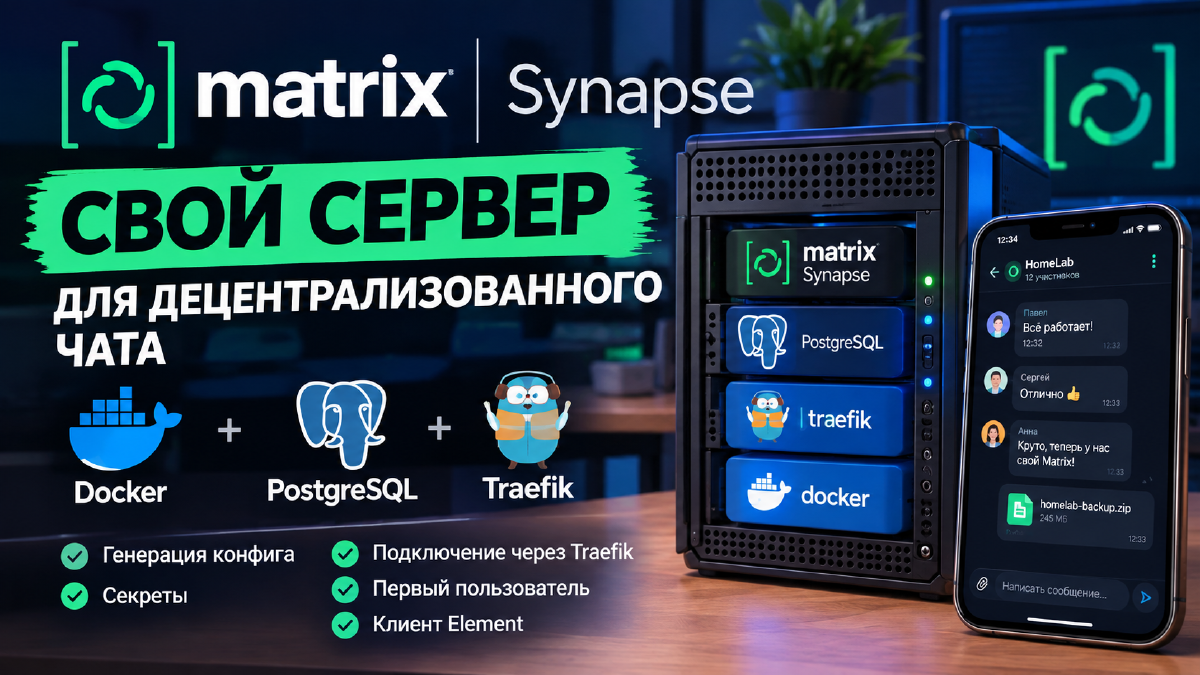
Matrix is an open, decentralized protocol for messaging, similar in spirit to email: every server has its own domain, and servers federate with each other, so users on different servers can talk to one another directly, with no single central company in the middle. Synapse is the reference (and by far the most widely deployed) implementation of a Matrix server, developed by Matrix.org.
For a homelab, your own Matrix server closes the same gap as any other self-hosted messenger: chats, voice and video calls, file sharing - but without depending on someone else’s infrastructure and with full control over your data. Unlike fully isolated solutions such as Nextcloud Talk, though, federation optionally leaves the door open to talk to users on other Matrix servers too, including the large public matrix.org network.
The protocol itself appeared in 2014 - it was created by Matthew Hodgson and Amandine Le Pape, who came out of a corporate unified-communications project called Vector that they had worked on at Amdocs (hence the client’s original name - Vector/Riot, renamed to Element only in 2018). In 2019 a separate non-profit, the Matrix.org Foundation, was set up to steward the protocol specification independently from commercial client development. The best-known case study from this history is CERN, which in 2019 began migrating roughly 18,000 employees from Skype for Business to its own Matrix/Element deployment, precisely because of the protocol’s openness and the ability to keep communications fully on its own infrastructure. So this isn’t some hobbyist vibe-coded project - it’s a genuinely enterprise-grade technology that was originally designed with corporate needs in mind, and which we can just as well run at home.
Synapse isn’t the only Matrix server implementation out there (there are lighter-weight options like Dendrite and Conduit, which might actually be a better fit for a home setup), but Synapse is the most mature and best documented one, which is why this article uses it.
How Matrix differs from Telegram and WhatsApp#
At first glance the difference isn’t obvious - all three have chats, calls, groups, and mobile apps. Architecturally, though, these are fundamentally different things.
- Centralization vs. federation. With Telegram and WhatsApp, every message ultimately passes through the servers of a single company (Telegram and Meta1, respectively) - no other servers exist in these networks. Matrix is a federated protocol: anyone can stand up a server, and such servers talk to each other directly, much like mail servers do for email. Your homelab server is an equal participant in the network, not a client of someone else’s infrastructure.
- Who owns the data. On Telegram and WhatsApp, messages (even when encrypted in transit) physically live on the vendor’s servers. With self-hosted Matrix, your entire message history, media files, and metadata live wherever you deployed Synapse yourself - in your own Postgres database, on your own disk.
- End-to-end encryption by default. WhatsApp turns on E2E encryption for all chats by default. Telegram only offers it in separate “secret chats,” if I’m not mistaken - regular chats and groups are only encrypted in transit to the server, and the company itself is technically able to read their contents. Though honestly, I’m not 100% sure that’s still accurate. In Matrix, end-to-end encryption (the Olm/Megolm protocol) can be enabled for any room, and in practice clients have long enabled it by default for private chats.
- Open protocol and open source. The Matrix specification is open and standardized by the Matrix.org Foundation, and both the server side (Synapse, Dendrite, Conduit) and the client side (Element and others) are open source - anyone can inspect and fork them. Telegram’s and WhatsApp’s protocols are closed: only the company itself controls the clients and API, and third-party compatibility relies on unofficial reverse-engineering that can be cut off at any moment.
- Resistance to blocking. Blocking Telegram or WhatsApp means blocking one specific company and its domains/IP ranges, which various countries have already tried more than once. Blocking Matrix as a whole is technically almost impossible: there are thousands of servers, each with its own domain, and blocking one server (say, the public matrix.org) doesn’t touch the rest - including your own.
The practical takeaway: if convenience and an already-huge list of contacts is the deciding factor for you, neither Telegram nor WhatsApp can be replaced in one move. But if what matters is control over your data, independence from a single company’s decisions, and resilience against a specific service getting blocked - that’s exactly what your own Matrix server is for. And you can just as well run it for your company’s employees as for your own family and friends.
What you’ll need#
- a host with Docker;
- a domain and a configured reverse proxy (Traefik, in my case) - it’s used throughout this article. You can skip it and publish the port directly, but that’s about the worst option available;
- a bit of patience and time during the config- and secret-generation stage - there are many steps, but each one is fairly simple on its own.
For Synapse’s database we’ll use PostgreSQL rather than the built-in SQLite. This isn’t a matter of taste or convenience. The developers explicitly warn that SQLite is only suitable for testing and isn’t fit for real-world use because of performance limits under concurrent access. In plain terms: put more than two or three people on the server and SQLite’s integrity is already at risk.
Step 1. Generate the initial config#
Synapse can generate a working homeserver.yaml for you. We’ll use the same image, but with the generate command. This is a one-off run of the image purely to generate the working config, not a persistent service.
Create the folder structure:
mkdir -p /home/stilicho/docker/synapse/data
cd /home/stilicho/docker/synapse
Create the temporary file with sudo nano docker-compose.yaml, just for generation:
services:
  synapse:
    image: docker.io/matrixdotorg/synapse:latest
    command: generate
    environment:
      - SYNAPSE_SERVER_NAME=matrix.stilicho.ru
      - SYNAPSE_REPORT_STATS=no
    volumes:
- ./data:/dataSYNAPSE_SERVER_NAME isn’t just the domain the service happens to run on - it’s the server name that will forever be tied to the identifiers of all your users (@user:matrix.stilicho.ru) and to room addresses. You can’t change it after the first run - or rather, you technically can, but only by creating a new server. So no, there’s no migrating it. Or, to put it another way: yes, there’s no migrating it. If you’re unsure, pick the domain in advance and for good, including whether it’ll be a dedicated subdomain (as in this article) or a bare domain without a subdomain, linked in a specific way via .well-known delegation - more on that below.
Run the generation:
docker compose run --rm synapseThe data folder will now contain a ready homeserver.yaml, along with automatically generated matrix.stilicho.ru.log.config and matrix.stilicho.ru.signing.key files - the latter is a cryptographic key the server uses to sign outgoing federation events. Guard it like the crown jewels.
Once generation is done, the temporary compose file is no longer needed - on to the real one.
Say your server needs to respond on a second-level domain (@user:stilicho.ru) rather than a subdomain - technically Synapse still has to physically run on a separate subdomain (for example, the same matrix.stilicho.ru), and the bare domain needs to be “delegated” to it via two files: https://stilicho.ru/.well-known/matrix/server and https://stilicho.ru/.well-known/matrix/client, each returning JSON with the address of the real server. That’s a separate topic this article doesn’t get into - for a first server, it’s simpler and more reliable to just use the subdomain as-is.
Step 2. Edit the generated homeserver.yaml#
Open data/homeserver.yaml and make a few edits.
Switch to PostgreSQL. As mentioned above, the generated config uses SQLite by default, so remove the sqlite block and paste in the following instead:
database:
  name: psycopg2
  txn_limit: 10000
  args:
    user: synapse
    password: "replace_with_password_from_env"
    dbname: synapse
    host: synapse_db
    port: 5432
    cp_min: 5
    cp_max: 10
host: synapse_db- this is the name of the Postgres service from the compose file (see step 3); Docker’s built-in DNS resolves it automatically within the shared network, so there’s no need to hardcode any extra IP address.password- must exactly match thePOSTGRES_PASSWORDvalue from the compose stack’s.envfile - these are two independent places holding the same password, and letting them drift out of sync is the single most common reason Synapse fails to connect to the database after the first run.
Disable open registration. By default the key is entirely absent from the generated file, so add it explicitly:
enable_registration: falseWithout this step, anyone who learns your server’s address can register their own account. On a home server, we’ll create users manually instead, with a dedicated command (see step 6).
The generated file already contains three secrets: registration_shared_secret, macaroon_secret_key, and form_secret. Synapse generates these randomly on the first run - unlike ready-made demo configs floating around the internet (say, in other people’s docker-compose example repos), where these values can be identical for everyone who copied the file without a second glance. If you’re porting a config from someone else’s example, be sure to regenerate your own values, for instance with openssl rand -hex 32, and don’t reuse whatever was written in the example.
The remaining keys (server_name, pid_file, listeners, media_store_path, signing_key_path, trusted_key_servers) were generated correctly and don’t need touching.
Step 3. The final docker-compose.yaml#
services:
  synapse:
    image: docker.io/matrixdotorg/synapse:latest
    container_name: matrix-synapse
    restart: unless-stopped
    environment:
      - TZ=${TZ}
      - SYNAPSE_CONFIG_PATH=/data/homeserver.yaml
    volumes:
      - ./data:/data
    depends_on:
      - synapse_db
    networks:
      - synapse
      - proxy
    labels:
      - "traefik.enable=true"
      - "traefik.http.routers.synapse.entrypoints=web"
      - "traefik.http.routers.synapse.rule=Host(`matrix.stilicho.ru`)"
      - "traefik.http.middlewares.synapse-https-redirect.redirectscheme.scheme=https"
      - "traefik.http.routers.synapse.middlewares=synapse-https-redirect"
      - "traefik.http.routers.synapse-secure.entrypoints=websecure"
      - "traefik.http.routers.synapse-secure.rule=Host(`matrix.stilicho.ru`)"
      - "traefik.http.routers.synapse-secure.tls=true"
      - "traefik.http.routers.synapse-secure.tls.certresolver=cloudflare"
      - "traefik.http.routers.synapse-secure.service=synapse"
      - "traefik.http.services.synapse.loadbalancer.server.port=8008"
      - "traefik.docker.network=proxy"

  synapse_db:
    image: docker.io/postgres:16-alpine
    container_name: matrix-postgres
    restart: unless-stopped
    environment:
      - TZ=${TZ}
      - POSTGRES_USER=${POSTGRES_USER}
      - POSTGRES_PASSWORD=${POSTGRES_PASSWORD}
      - POSTGRES_INITDB_ARGS=--encoding=UTF-8 --lc-collate=C --lc-ctype=C
    volumes:
      - ./postgres:/var/lib/postgresql/data
    networks:
      - synapse

networks:
  synapse:
  proxy:
    external: true
Let’s go over how this differs from what Synapse generates “out of the box” in examples found online:
networks: synapseandproxy-synapseis an internal network purely for talking to Postgres, created automatically;proxyis Traefik’s external network (external: true), which must already exist (docker network create proxy, if it hasn’t been created for other services yet). Thesynapse_dbdatabase only sits on thesynapsenetwork - nobody outside Synapse itself needs to reach it.labels- the same pattern used across the site’s other articles that use Traefik as a reverse proxy: an HTTP router that redirects to HTTPS, an HTTPS router with thecloudflareTLS resolver (swap in your own resolver’s name if it’s different), and a load balancer pointed at the container’s internal port8008- that’s the port Synapse listens on for HTTP by default.POSTGRES_INITDB_ARGS- forces the database’s encoding and collation toC/UTF-8at first initialization. It’s important to do this right at the start../postgres:/var/lib/postgresql/data- a bind mount instead of a named volume, following the same approach as my other deployment examples. The path on the host is spelled out explicitly, which makes backups easier.
The .env file next to the compose file:
TZ=Europe/Moscow
POSTGRES_USER=synapse
POSTGRES_PASSWORD=replace_with_your_passwordThe POSTGRES_PASSWORD value here must be exactly the same as what you set for password inside database.args in homeserver.yaml back in step 2. Don’t commit .env to git - if you manage configs via GitOps (see the article on Forgejo and Komodo), add .env to .gitignore.
Bring the stack up:
docker compose up -dOn the first run, Postgres initializes its data structures, and Synapse may restart once or twice while waiting for the database to become available - that’s normal.
Step 4. Check that the server is up#
Open https://matrix.stilicho.ru in a browser - Synapse serves a simple page with text like “Welcome to the Matrix,” which is a sign the server is running and Traefik successfully reached it.
A more thorough check is the federation tester from the Matrix.org project itself: https://federationtester.matrix.org/ - enter matrix.stilicho.ru there, and if everything is configured correctly (including DNS and the certificate), the test will show a green federation status, even if you don’t plan on talking to external servers just yet.
Step 5. Log rotation#
By default, the log_config generated in step 1 is set up to rotate by size, but it’s always worth checking the actual contents of data/matrix.stilicho.ru.log.config - among other things, it sets the log level (INFO by default, which is more than enough for a home server; DEBUG will quickly balloon into gigabytes of data that’s useless for a home user).
Step 6. Create the first user#
Since open registration is disabled (step 2), we create users manually with the built-in script inside the container:
docker exec -it matrix-synapse register_new_matrix_user -c /data/homeserver.yaml http://localhost:8008The script asks for a login, a password, and - as a separate question - whether to grant admin rights. It only makes sense to grant admin rights to yourself; other users don’t need them for ordinary use.
Under the hood, the script uses the very same registration_shared_secret from homeserver.yaml - which is exactly why registration through this command still works even when the enable_registration: false config line blocks registration through every other route.
Step 7. Connect a client#
The official client is Element (web, desktop for Windows/macOS/Linux, mobile apps for Android/iOS). The first time you sign in on any version of the client:
- Choose Sign in.
- Change the default server domain (
matrix.org) to your own - there’s usually a button like Edit next to the server address field. - Enter
https://matrix.stilicho.ru. - Enter the login and password created in step 6.
From this point on, the server and client are linked - you can use the web version, the desktop app, and the mobile app all at once, under the same account.
What’s next#
What’s shown here is a minimal working setup. There’s plenty of room to grow from here:
- Voice and video calls. The topic turned out to be big enough that I split it into its own article - Voice and Video Calls in Matrix - Deploying LiveKit and Element Call. Spoiler: a plain TURN server (coturn) isn’t the main path to calls anymore - modern clients like Element X have moved to the MatrixRTC architecture with a LiveKit backend;
- Bridges to other messengers (Telegram, WhatsApp, Discord) - these let you read and write to other networks straight from a Matrix client;
- A dedicated media repository service, if the volume of forwarded files and images starts growing;
- Backups - at minimum, the
datafolder (config, keys, media) and Postgres dumps; the actual backup tools are covered in separate articles on the site.
But for a first introduction to running your own Matrix server, what’s shown above is, in my view, enough: a working server behind Traefik, secure secrets, disabled open registration, and a connected client.
Links#
The organization has been designated as extremist and its activities are banned in the Russian Federation. ↩︎