Anyone who’s ever migrated between note-taking systems knows the feeling: for a week everything’s clunky, everything annoys you, you keep getting lost. Then you get used to it, and six months later you can’t even imagine it being any other way.
I use Obsidian not just for articles on this site. In one vault, I keep notes about my homelab, a personal library catalog with a hundred cards (soon to be over a thousand), a work database for day-to-day tasks, and a plain Zettelkasten for ideas I don’t want to lose. That’s exactly why choosing a tool and configuring it isn’t just “which editor is more convenient” - it’s a question of architecture that has to withstand a very mixed workload. In my case, it’s a very mixed one indeed.
My Obsidian plugins#
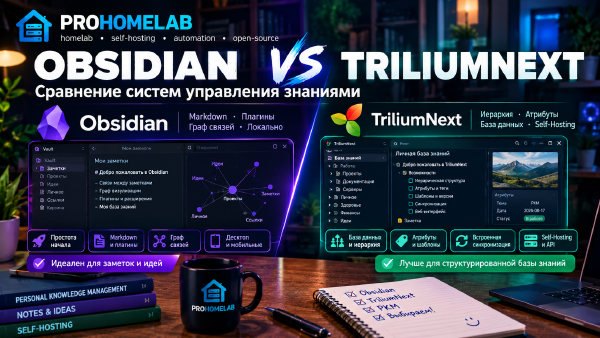
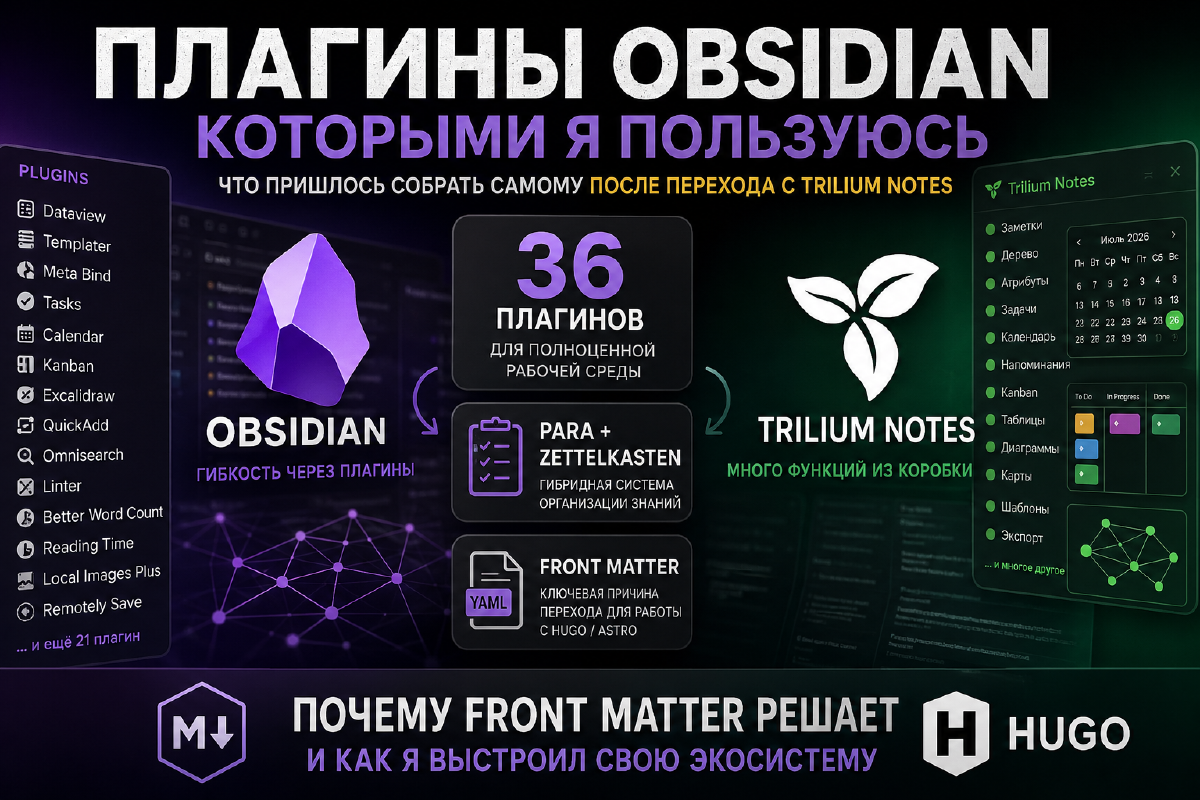
After moving from Trilium Notes to Obsidian, I had to rebuild my familiar working environment from scratch. Unlike Trilium, Obsidian follows a modular philosophy: the core stays as minimal as possible, and the necessary functionality is added through plugins. I covered how I weighed the two systems before making the switch in Obsidian vs TriliumNext.
The reason for my move wasn’t a lack of features in Trilium. On the contrary, Trilium Notes 0.104.1 (the current version as of writing) already ships with a huge number of features out of the box. Version 0.103.0 added the ability to write notes in markdown.
But I needed full support for Front Matter. Thanks to it, notes become plain Markdown files with metadata that the Hugo or Astro static site generators can understand. Without front matter, I had to do a lot of dumb, repetitive manual work.
Today, my vault is a hybrid of two methodologies:
- PARA - for organizing projects, articles, and work materials.
- Zettelkasten - for storing and linking a knowledge base.
I spent quite a lot of time working out the architectural philosophy of my knowledge base, and in my case, a hybrid of the two well-known-in-narrow-circles methodologies above turned out to fit best. In their original, pure forms, neither worked for me - using them as-is only added confusion, and to put it plainly, drove me up the wall.
To put it simply, the logic is this:
- 00-Inbox - everything new lands here without thinking about where it actually belongs. I go through it every few days (at best).
- Projects - things with a concrete outcome (unlike the original PARA creator’s intent, deadlines don’t concern me): an article for the site, a one-off work task/project, etc.
- Areas - areas of interest, hobbies, and anything without clear boundaries or limits that gets maintained continuously. For me, that’s homelab, work, and hobbies (I have more than one).
- Resources - reference material not tied to any specific project: homelab configs, various documentation, my physical book library catalog, my vinyl record catalog.
- Archive - things that are finished or turned out to be unneeded (really, truly not needed), but that I feel bad deleting.
Splitting into Areas and Resources is probably the main reason it was worth building this hybrid in the first place. Pure Zettelkasten is good for linking ideas (probably good - I’m not really sure the method suits anyone besides its creator, or maybe some ghost-writer-employing bestselling novelist), but it’s poor for quickly finding “what do I have on this specific task right now.” Pure PARA, on the other hand, organizes active work great, but doesn’t do a good job linking scattered notes together. The hybrid takes what actually worked for me from each methodology and discards the rest.
To build a system like this in Obsidian, I use the following plugins.
Database and metadata#
Dataview#
Dataview turns an ordinary collection of Markdown files into a full-fledged database. It can build tables, lists, reports, and queries based on Front Matter fields.
The plugin is currently barely used, since the core bases plugin covers most of the need, but I’m not removing it (it’s just disabled), because it has functionality that bases doesn’t have yet, and apparently its developer wants to significantly improve it in the future.
Meta Bind#
Lets you turn Front Matter values into interactive interface elements.
For example:
- toggles;
- dropdown lists;
- input fields;
- buttons.
This lets you edit note properties without having to manually edit YAML. Honestly, having this plugin is more of a whim. I played with it and dropped it. I don’t need it for actual work.
Automation#
Templater#
One of the most powerful Obsidian plugins.
Used for creating and automating work with templates. It can automatically:
- create new notes;
- fill in Front Matter;
- insert the current date;
- run JavaScript code;
- build complex templates.
QuickAdd#
Used to automate repetitive actions. Lets you create custom commands that, in a single action, can:
- create a new note;
- pick a template;
- ask for the required parameters;
- automatically fill in metadata.
Auto Link Title#
Automatically fetches a webpage’s title and inserts it into a Markdown link.
Instead of
https://example.comyou get
[Page Title](https://example.com)Paste URL into Selection#
Lets you paste a URL over selected text and immediately get a ready-made markdown link, without manually wrapping it in brackets. Simple and unnoticeable, but it saves seconds on every link you paste.
Linter#
Automatically brings notes to a consistent style.
For example:
- sorts Front Matter;
- fixes formatting;
- removes extra whitespace;
- standardizes list formatting;
- standardizes Markdown styling.
Obsidian Git#
Obsidian Git is a plugin for automating Git operations directly from Obsidian. It can automatically commit changes to the vault and push them to a remote Git repository.
In my setup, Obsidian Git is used as the first stage of automated content publishing:
Obsidian → Obsidian Git → Forgejo → publishing automation → the ProHomeLab site
I edit articles directly in Obsidian, after which the plugin automatically creates a Git commit and pushes the changes to a private Forgejo repository. Forgejo then runs a configured workflow that pushes the changes to the site’s repository and triggers its build and publish process.
This way, Git remains an intermediate layer between the editor and the site: it simultaneously provides content versioning, a backup of changes, and automatic delivery of published material.
Vault organization#
Folder Notes#
Lets every folder have its own note. Effectively, a folder becomes a full documentation section with its own main page. Since I use Notebook Navigator (which has an identical, but built-in, feature), this is currently unused. I use this feature as a way to embed a kind of database in the root folders, whose purpose is to index the contents of those folders.
Notebook Navigator#
Significantly improves navigation through the vault. It’s basically a customization of Obsidian’s file explorer. The difference is roughly like between vanilla GNOME and KDE Plasma. Makes working with a large number of notes much more convenient (though it’s a matter of taste).
Homepage#
Automatically opens a chosen note on Obsidian startup. Despite having a note that could serve as a dashboard, I don’t actually use this.
Icon Folder#
Lets you assign custom icons to folders. Supposedly makes the note tree much more visually navigable, but in my case it’s again just a toy that exists but doesn’t get played with.
File Explorer Note Count#
Shows the number of notes inside each folder. Very handy for keeping track of a large vault’s structure.
Search and navigation#
Omnisearch#
Completely replaces Obsidian’s built-in search. Works significantly faster and provides more convenient search results. This becomes especially noticeable when working with a large number of notes.
Commander#
Lets you create custom commands and add them to the Obsidian interface. Used to speed up frequently performed actions by surfacing them prominently. In practice, it just saves mouse clicks.
Quick Switcher ++#
Extends the capabilities of the standard Quick Switcher. Searching and jumping between notes becomes noticeably more convenient.
Planning#
Calendar#
Adds a calendar. Used for daily notes and navigating between them. But I don’t actually use it. Notebook Navigator has its own, more advanced calendar, which I … also don’t use.
Tasks#
Significantly extends task management. Supports:
- due dates;
- recurring tasks;
- filtering;
- Dataview queries;
- task reports.
Reminder#
Adds a reminder system. Lets you get notifications about important tasks and events.
Kanban#
Adds full-fledged Kanban boards directly inside Obsidian. Lets you manage projects without third-party services.
Working with text#
Better Word Count#
Displays extended document statistics:
- word count;
- character count;
- sentences;
- paragraphs.
Especially useful when writing articles.
Reading Time#
Automatically calculates the estimated reading time of an article. I use it when preparing material for the site. But again, it’s more of a decoration than something practically useful in my case.
Editing Toolbar#
Adds a visual toolbar for the Markdown editor. You work as if in a regular office suite.
Especially useful for people who don’t remember or don’t want to memorize all the markdown keyboard shortcuts.
Advanced Tables#
Makes working with Markdown tables as convenient as possible. Effectively turns them into a small spreadsheet-like tool. And you don’t have to manually type out all the vertical and horizontal dashes.
Working with images and media#
Local Images Plus#
Automatically downloads images from the internet and saves them locally.
Thanks to this, notes become fully self-contained, images included, but it requires additional configuration. The plugin needs to be used carefully, or it can clutter up the whole system.
Image Toolkit#
Extends image viewing capabilities. Lets you zoom in on images and makes working with them much more convenient.
Media Extended#
Adds extended video and audio support directly inside notes. You can paste YouTube links, or whatever else you use, straight into notes and watch/listen right there.
Maps#
Lets you insert interactive maps. Useful for notes related to travel and geography. I don’t use it, but it’s installed.
Excalidraw#
Adds a full-fledged drawing canvas.
Used to create:
- diagrams;
- charts;
- mind maps;
- service architecture diagrams.
Practically indispensable for technical documentation. Actually, it’s extremely convenient beyond just technical documentation too, depending on your needs.
Zim Reader#
Lets you open ZIM format files directly inside Obsidian. For example, a local copy of Wikipedia. That’s exactly what I use it for - Wikipedia.
Export and formatting#
Better Export PDF#
Significantly improves exporting notes to PDF. The resulting documents look much more professional.
Admonition#
Adds nice-looking Callout information blocks:
- Note;
- Tip;
- Warning;
- Danger;
- Success;
- Info.
Basically pure decoration that personally I don’t care about.
Code Styler#
Improves the formatting of code blocks. Especially useful when writing technical articles. Obsidian likes to mess up code formatting - everything shifts and you end up wasting time removing extra spaces and so on.
Appearance#
Minimal#
The main theme for my vault. Minimalist, tidy, and very well configurable.
Style Settings#
Lets you configure themes and plugins through a convenient graphical interface. Many modern themes rely on exactly this plugin, but I’ve barely used it myself.
Minimal Settings#
Adds additional settings specifically for the Minimal theme. Configure it once and then it just sits quietly in the background.
Maintenance#
Plugin Update Tracker#
Watches for updates to installed plugins.
Lets you quickly find out about new plugin versions, but there can be problems in Russia, since it needs access to AWS servers.
BRAT#
Lets you install beta versions of plugins directly from GitHub. Used in cases when a needed feature hasn’t made it into an official release yet.
Sync#
Remotely Save#
I use this to sync the vault with Nextcloud.
Lets you avoid paying for Obsidian Sync and choose your own storage location. Plus you don’t need an external database or a battery-draining Syncthing instance on your phone.
What of this already exists in Trilium Notes?#
Interestingly, most of the capabilities listed above are already present in Trilium Notes 0.104 without installing any additional extensions.
Available out of the box:
- template support;
- a note attribute system;
- powerful search;
- tasks;
- reminders;
- a calendar;
- Kanban views;
- tables;
- a built-in diagram editor;
- interactive maps;
- document export;
- information blocks;
- an advanced editor;
- note tree navigation;
- automation via JavaScript.
That’s exactly why, after moving from Trilium, it might look like you have to install dozens of plugins in Obsidian (in my case, more than three dozen) just to get back the functionality you’re used to.
However, the philosophy of these two apps is different.
Trilium offers maximally rich functionality right after installation.
Obsidian provides a minimalist core, letting the user build their own working environment for their specific tasks.
The ability to use plain Markdown files with Front Matter, along with integration with Bases, Git, and other tools, was the main reason I switched to Obsidian, despite needing to install a large number of plugins.
Comparison table of Obsidian plugins and built-in Trilium features#
| Feature | Obsidian | Trilium Notes 0.104 |
| ——————— | ———————— | —————————– |
| Calendar | Calendar | Built-in |
| Tasks | Tasks | Built-in |
| Kanban | Kanban | Built-in |
| Templates | Templater | Built-in |
| Note attributes | Meta Bind + Front Matter | Built-in |
| Maps | Maps | Built-in |
| Diagrams | Excalidraw | Built-in (diagrams and canvas) |
| Tables | Table Editor | Built-in |
| Reminders | Reminder | Built-in |
| Search | Omnisearch | Built-in |
| PDF export | Better Export PDF | Built-in |
| Folder icons | Icon Folder | Built-in |
| Home page | Homepage | Built-in |
| Local images | Local Images Plus | Built-in |
| Word count | Better Word Count | Built-in |
| Reading time | Reading Time | Built-in |
| Auto-formatting | Linter | Built-in |
|Note sync | Remotly Save | Built-in |
Summary#
Thirty-six plugins sounds scary, but in practice, most of them are a one-time setup that I forgot about the moment it started working. The core working loop is Templater, Notebook Navigator, Bases, and Front Matter. Everything else is add-ons, some of which I enabled once and never touched again (hi, Meta Bind and Maps).
If someone asked me whether it was worth it - yes, absolutely. But not because Obsidian is functionally richer than Trilium (it’s not, Trilium gives you more, much more, out of the box), but because I specifically needed a plain text file with Front Matter that Hugo understands - and I had to rebuild everything else around that single requirement.
Who each one suits#
Trilium - if you don’t need to publish notes on a static site, self-hosting matters to you, and you want maximum out-of-the-box functionality without jumping through hoops trying to make a bunch of plugins work together without conflicts. A powerful tool after one evening (well, maybe two) of setup.
Obsidian - if, like me, you specifically need plain-text Markdown with Front Matter, Git integration, and static site generators, and you’re willing to spend time (a lot of time, a whole lot of time) assembling your own plugin ecosystem for your specific tasks.
Neither option is “better” in a general sense - they grew out of different philosophies, and the question is which philosophy fits your task better.