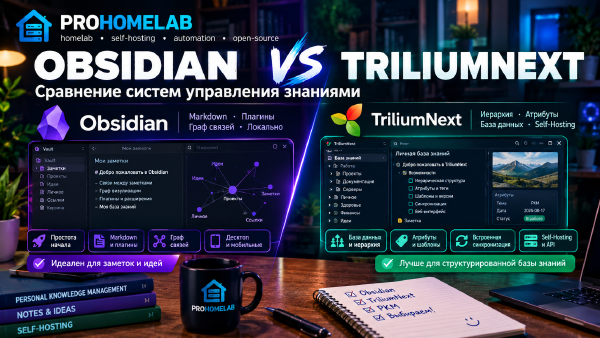
My first note-taking app was actually Trilium, and I still think it’s a great piece of software - I wrote about it here. The problem was publishing. Trilium has no convenient way to automate posting to a blog, so I moved to Obsidian, partly by choice and partly because I had to. The full story is in my Obsidian vs TriliumNext comparison.
Given my job and my hobbies, Obsidian stopped being “just a notes app” a long time ago. It holds work material, my vinyl reference notes, homelab docs, video scripts, and every post on this site. It’s also where publishing happens. I write or edit a post right in Obsidian, and a few minutes later it shows up on prohomelab.com on its own.
I’ve already covered the Obsidian plugins I use in a separate post. This one is about the whole workflow - how the folders are laid out, how the vault syncs to my other devices, where the backups live, how a draft turns into a web page, and what happens when the homelab goes down.
The big picture#
flowchart LR
    PC["Obsidian on the PC"] -- Remotely Save --> NC["Nextcloud"]
    NC -- Remotely Save --> DEV["Other devices"]
    PC -- "git, by hand" --> VR["Forgejo, vault repo"]
    PC -- "Obsidian Git, every 10 minutes" --> CR["Forgejo, prohomelab-content"]
    CR -- "notify.yml" --> SR["Forgejo, prohomelab-site"]
    SR -- "deploy.yml, Hugo + Blowfish" --> GH["GitHub Pages"]
    GH --> WEB["prohomelab.com"]
There are three separate flows here. Nextcloud keeps my devices in sync, Forgejo holds a backup of the entire vault, and the site’s posts live in their own repo and get pushed out to GitHub Pages without me touching anything. That split is deliberate, and I’ll explain why further down.
Vault layout - PARA, with numbers#
The folders loosely follow PARA (Projects, Areas, Resources, Archive). I say loosely because my take on it is a bit different, and the number prefixes are only there to keep the order fixed in the file explorer.
00-Inbox- quick notes, drafts, Web Clipper grabs, and daily notes. Those are less about the day and more about “I don’t know where this goes yet, but I don’t want to lose the thought”.01-Projects- active projects. The main one isProhomelab, which is the site’s posts. Next to it are video scripts. There’s also my rack project, which has been going for six months now with no end in sight. It already has enough notes to fill a blog of its own.02-Areas- ongoing areas of responsibility. For me that’s the homelab (right down to custom CSS for various services that I repaint in my brand colors), my day job, and my personal knowledge base.03-Resources- reference material and the library - books, authors, saved copies of other people’s articles, professional reading, and so on.04-Archive- everything that’s finished. Which, it turns out, is nothing. That pretty much proves my point that my PARA isn’t really PARA.05-Templates- templates for Templater and QuickAdd.06-Attachments- attachments.99-Meta- housekeeping. This is also where all the Bases dashboards live, along with various stats about the vault and the site.
I don’t rename the numbered folders, because templates, bases and file paths all depend on them. Inside a folder, navigation comes down to a simple combo - a base (the core Bases plugin) built straight from the folder, plus a folder note that acts as its table of contents.
What holds it all together#
The full plugin list is in its own post. Here are just the load-bearing ones.
- Bases - tables and dashboards. Dataview is switched off, Bases replaced it completely.
- Notebook Navigator - my main file explorer, with two panes, folder icons and folder notes. This one plugin can stand in for a surprising number of others, Templater included.
- Templater and QuickAdd - every new note comes from a template, including drafts of site posts.
- Obsidian Git - only handles the posts folder, not the whole vault.
- Remotely Save - sync between devices through Nextcloud.
- Local Images Plus - downloads images from pasted links and stores them next to the note. Be careful with this one. It tends to grab every image from every note, including the ones in my own site posts. I only want local copies of images from articles I clip with Web Clipper.
- Omnisearch with Text Extractor - full-text search, including text inside PDFs and images.
Sync and backup are two different jobs#
Syncing between devices goes through Remotely Save and my own Nextcloud. The plugin is showing its age - the last release came out in fall 2024 - but it still does the job. I don’t use Obsidian Sync. No subscription, it’s too expensive. The vault physically sits in a OneDrive folder, but OneDrive sync is turned off for it so two sync tools never fight over the same files. I also made a conscious decision to stop paying for OneDrive anyway.
Backing up the whole vault is a git repo on my own Forgejo. The vault root is never committed automatically. I commit and push by hand once I’ve finished a meaningful chunk of work, so the history actually reads like a history and not like a hundred “vault backup” commits. There’s one more catch. Obsidian Git works with a single repo per vault, and mine is already taken by the posts folder. Sure, I could split things into several vaults, but I’d rather not multiply entities for no reason.
A few setup details:
.gitignoreexcludes the posts folder (it has its own repo, more on that below) and the Text Extractor cachecore.longpathsis on, because Local Images Plus can produce very long paths, and without this setting git on Windows can’t handle paths longer than 260 characters- files holding plugin API keys and exports with secrets never go into git at all
Forgejo authentication goes through Git Credential Manager with OAuth, with a personal access token as the fallback. Obsidian Git and every other repo on this machine pick up the same login.
How a post gets onto the site#
Where a post lives#
Each post is its own folder (a page bundle, in Hugo terms) inside its category.
01-Projects/Prohomelab/
  <Категория>/
    _index.md          - страница категории
    <папка статьи>/
      index.md         - статья на русском (имя файла строго index.md)
      index.en.md      - английская версия
      featured.png     - обложка
      0.png, 1.png     - картинки, ссылки только относительно папки статьи
In that tree, _index.md is the category page, index.md is the Russian post (the file name has to be exactly that), index.en.md is the English version, featured.png is the cover, and the numbered images are referenced relative to the post folder.
A new post starts from the draft template and gets renamed to index.md right away. Hugo won’t publish any other .md file in that folder as a page.
From edit to live site#
- I write and edit the post in Obsidian.
- Every 10 minutes Obsidian Git commits and pushes the posts folder to the
prohomelab-contentrepo on Forgejo by itself. There’s no “publish” button. Thedraftfield in the frontmatter is effectively my publish switch. - The push triggers the
notify.ymlworkflow in that repo, which kicks off a build in the site repo. - In
prohomelab-site,deploy.ymlruns - a clean checkout with the Blowfish theme, a script that pulls in fresh content and converts Obsidian-style image embedsinto regular markdown, and thenhugo --minify. - The resulting
publicfolder is pushed to thegh-pagesbranch of the GitHub Pages repo, and the site is updated.
How I got to this setup, and how many times I rebuilt it along the way, is covered in my series on automation - the first version on Forgejo Actions, moving from shared hosting to GitHub Pages, trying to squeeze everything into one repo with self-hosted GitHub Actions, and going back to two repos. If you want to set up Hugo with Blowfish yourself, there’s a separate guide for that.
The source of truth for the site is the Forgejo repos, not the working copy on the build server. Site settings (hugo.toml, menus, templates) live in the prohomelab-site repo, outside the vault.
Rules that are easier to follow than to debug later#
The build is fully automated, so any mistake in a post turns straight into either a failed build or something broken on the live site.
- While a post is in progress, it stays at
draft: true. The auto-push every 10 minutes will ship anything that isn’t marked as a draft, including a post that stops mid-sentence. - Broken YAML kills the whole build. If
title,descriptionorsummarycontains a colon followed by a space, the value has to be quoted. Otherwise Hugo’s YAML parser thinks a nested mapping is starting and bails. Obsidian’s preview won’t warn you, the error only shows up in the build logs on Forgejo. publishedis a date, not true/false. Hugo treats this field as the publish date. If you’re getting an AI to reproduce what’s described here, watch out for this one. AI still isn’t that bright and may decide it’s a boolean flag.categoriestakes a single value, in the singular.- Changed the slug or moved the post? Put the old URL in
aliases. Otherwise Google Search Console quickly fills up with 404s. I burned a lot of nerves before I figured out what was going on. - Internal links are always full URLs like
https://prohomelab.com/posts/..., and the English version links to the English version of the target post. - Images use paths relative to the post folder only. Obsidian happily renders a path from the vault root, Hugo doesn’t, and the image just silently disappears from the site.
- Mermaid diagrams go in the theme’s shortcode, not a markdown code block. Blowfish only loads Mermaid when it sees the shortcode, and a regular block renders as plain code. In Obsidian’s preview the shortcode shows up as raw text, and I’ve made my peace with that.
Looks#
The Minimal theme plus my own CSS snippet in the ProHomeLab brand colors - a graphite background, a calm mint for links and checkboxes, a short gradient bar under the note title, and the Unbounded, Onest and JetBrains Mono fonts. The fonts load from Google Fonts and fall back to system fonts when I’m offline. I haven’t gotten around to downloading everything for local storage, and you can’t have enough disk space for everything anyway. Have you seen drive prices in 2026?
There’s exactly one bright accent - the selected folder in Notebook Navigator. Everything else is neutral on purpose. In long text, colored headings and tags get tiring fast, and then they get annoying.
When the homelab goes down#
Almost all of this runs on my own services, so I worked out a disaster plan ahead of time.
What survives an outage#
- The site keeps working. It’s served from GitHub Pages and doesn’t need the cluster at all. I just can’t publish anything new. That was a conscious choice, and the reasoning is in the series on the site. Plus, did you hear what happened with Beget? I don’t need that kind of thing in my life.
- The vault is fine on the PC and on the other devices. It’s just files, and Obsidian runs without any server.
- What breaks for a while is sync (no Nextcloud), the post auto-push and the manual root push (no Forgejo), and the site build (no Forgejo, no runner). Obsidian Git errors are expected during this time. Commits pile up locally and go out once things are back.
So losing any single piece of the workflow doesn’t really hurt day-to-day work.
Recovery order#
- Forgejo first - both the vault backup and the site depend on it. Once it’s up, check that all the repos are there - vault, posts, site and brandbook. Forgejo uses an external PostgreSQL database, which also helps with resilience.
- If Forgejo was rebuilt from scratch with no backup, no big deal. The repos come back with a regular push from the PC, since the local copies are complete.
- Actions secrets. A backup restores them, but on a clean install you have to issue new tokens. Forgejo never shows secret values, so there’s nothing to copy over. You need three - the token the posts repo uses to trigger the site build, the token the build uses to pull posts, and a GitHub token with write access to the Pages branch. Reissuing them takes a couple of minutes.
- The runner - check the
forgejo-runnerservice in the build LXC and its registration. On a fresh Forgejo, register it again. That takes about ten seconds. - Check the site - run
deploy.ymlmanually. Once, the first run after a migration failed for no obvious reason. I got nervous, but a plain re-run fixed it. - Git Credential Manager - on a fresh Forgejo, the old OAuth entry is no longer valid. Delete it and push once by hand, and every repo picks up the new login from there.
- Nextcloud and Remotely Save - once they’re back, just make sure sync goes through. Before the first sync after a long outage I make a copy of the vault, so a conflict between devices can’t eat my latest edits. That has happened to me too - every post on the site got overwritten. I was already picturing an early end to my YouTube career, but there’s a reason I keep everything in git.
Here’s how to clear the old GCM entry for Forgejo (the host is just an example, use your own):
printf "protocol=https\nhost=forgejo.stilicho.ru\n\n" | git credential rejectIf the PC itself gets reinstalled#
- The vault comes back either through Remotely Save from Nextcloud or by cloning the repo from Forgejo. Plugins and their settings live in
.obsidian, except the Text Extractor cache (it rebuilds itself) and the files with API keys (those you’ll have to enter again). - The posts folder is excluded from the root repo, so I clone it separately from
prohomelab-contentinto the same spot. - For long paths, run
git config core.longpaths truein the root repo.
Wrapping up#
In short, the whole setup rests on three decisions. Sync and backup are handled by different tools, at least in my case. Posts live in their own repo and publish themselves (well, not literally, but it’s automated), and the only publish switch is the draft field. And all the non-obvious rules are written down in one place that only I can read.
It has weak spots, of course. Remotely Save is getting old, and almost everything except the site itself depends on my home Forgejo. That’s exactly why the recovery plan lives right in the vault and is available offline.