
What is Mealie#
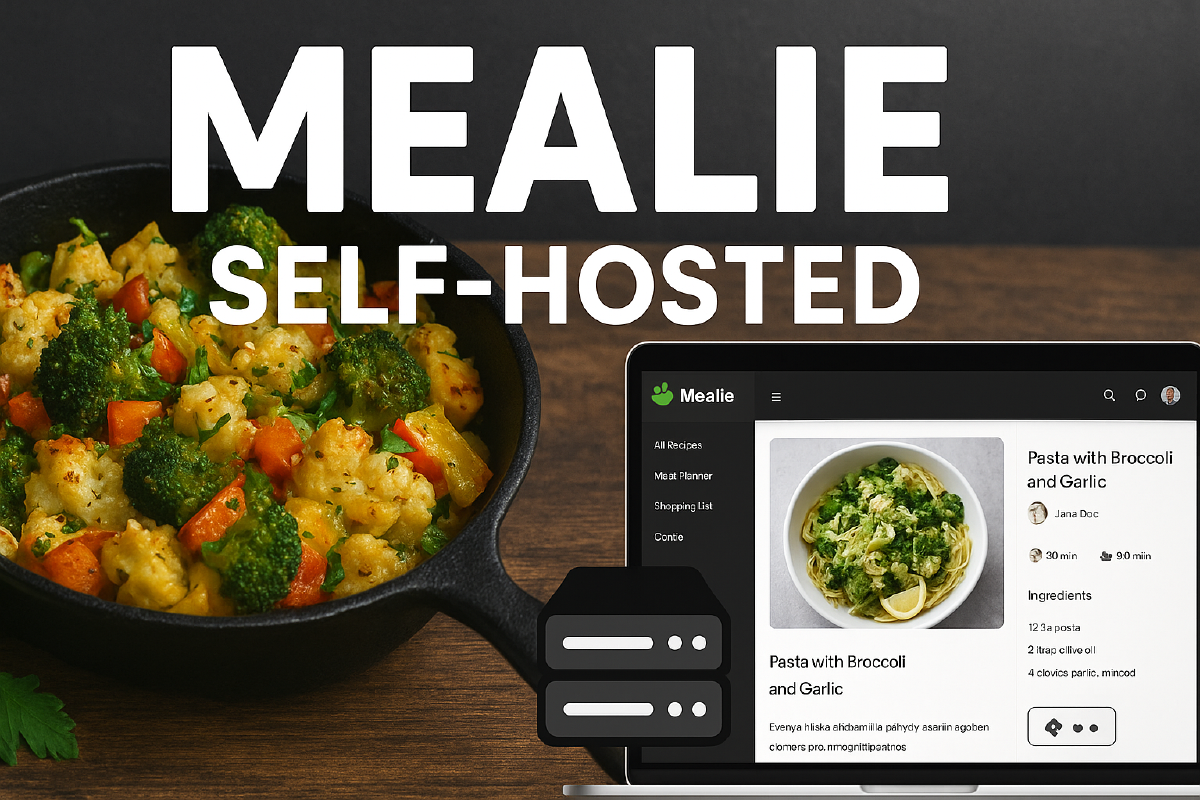
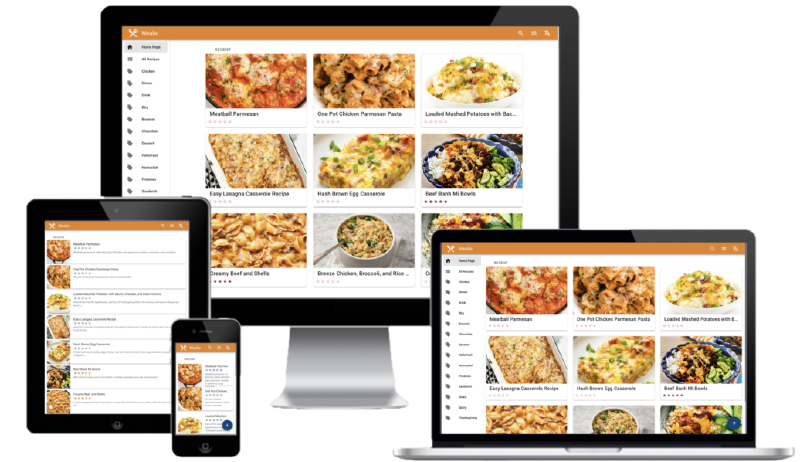
Mealie is an open-source, self-hosted app for managing recipes, planning meals, and building shopping lists. Project site: mealie.io Docs: docs.mealie.io
What it brings to the table:
- Runs on your own server or home infrastructure - no cloud dependency whatsoever.
- Pulls recipes straight off web pages with a built-in scraper.
- A modern Vue.js frontend backed by a REST API.
- A meal planner and shopping lists.
- Multi-user and multi-group support.
- Recipes organized into collections, tags, and categories.
What Mealie actually does#
Recipe import Type a recipe in by hand, or just paste a link - Mealie will pull out the ingredients and instructions on its own. More detail on GitHub: github.com/mealie-recipes/mealie
Recipe editor Full control over ingredients, instructions, photos, and descriptions.
Meal planner Spread meals out across the days of the week or month.
Shopping list Builds itself automatically from whatever recipes you’ve picked, and can group items by store aisle.
Keeping recipes organized Tags, categories, and collections (cookbooks) so you can actually find things later.
API and integrations REST API, webhooks, Home Assistant support, and more.
Localization The interface is available in a long list of languages.
Why homelab folks in particular will like it#
If you’re already running a home server or a small cluster - a Proxmox box and a mini PC, say - Mealie slots right in:
- Runs happily in Docker or an LXC container.
- Full control over your own data - your recipes, meal plans, and shopping lists never leave your infrastructure.
- Doubles nicely as a content base if you run a blog or YouTube channel.
- Plays well with home automation: notifications about what’s planned for dinner, ingredient lists on a kitchen display, that sort of thing.
A couple of caveats#
- Recipe scaling isn’t always perfect. Discussion on Reddit
- You’ll need basic self-hosting chops - setting up the server/container, backups, security.
- The mobile apps are third-party; the web interface is really the main way you’re meant to use it. An example iOS client
What’s changed in Mealie since this article went up#
Update. This article was originally written against the Mealie version current in October 2025. Several releases have shipped since then (the current one as of August 2026 is v3.22.0), and the project’s picked up features that simply didn’t exist when I first wrote this. Here are the ones worth knowing about, and how to actually use them.
Unit standardization#
Shopping lists used to duplicate the same ingredient under different units - “1 pint of milk” from one recipe and “2 cups of milk” from another wouldn’t merge into a single line. Now units can be standardized, and Mealie automatically folds compatible quantities into one shopping list entry. You configure standard units on the Data Management page under group settings, and you can add your own there too.
A note specifically for anyone used to cooking by grams and milliliters, which is basically the norm where I’m from. Standardization in Mealie only merges compatible units within the same type - volume to volume (pint → cups), weight to weight (oz → lb) - but it can’t reliably convert volume to weight. “1 cup of flour” won’t automatically become the right number of grams, because that conversion depends on the density of the specific ingredient, and Mealie’s database just doesn’t have that. Most recipes pulled in from English-language sites lean on cups, ounces, and Fahrenheit, so when you import one of these, it’s worth double-checking the numbers yourself and converting to grams/milliliters/Celsius by hand if you need to - the automation won’t always bail you out here.
A noticeably better web scraper#
The parser for regular recipe sites got a real upgrade. A lot of sites that used to choke on import - forcing you to manually copy the page’s HTML - now import cleanly again from just a link.
Announcements from the developers#
There’s now a dedicated announcements channel in the interface, separate from the regular changelog, for important news about features that actually need something from you.
Mealie’s AI features#
This is probably the single biggest thing Mealie has added recently, so it gets its own deep dive.
Which providers work#
Good news for the homelab crowd: Mealie isn’t locked into OpenAI. It’ll talk to any OpenAI-compatible API, including:
- OpenAI - the simplest route, but it costs money (billed by tokens, plus by audio minutes for Whisper);
- Azure OpenAI - if your household happens to have a corporate Azure subscription lying around;
- Ollama - fully self-hosted, runs right on the same Proxmox host or mini PC, and costs nothing at all - the tradeoff is that recognition quality depends entirely on which local model you pick;
- any other custom endpoint that speaks the OpenAI-compatible API.
If you’re the type who’d rather not ship your recipes and videos off to a third party on principle, Ollama is the obvious pick for a homelab setup - your data stays put, and you’re not paying anyone.
What the AI can actually do here#
- Import with AI - the headline feature. It can build a recipe out of plain text, HTML, JSON (including schema.org/Recipe markup), a photo of a recipe - printed or even handwritten - or a link to a video (YouTube, TikTok, Instagram). For video, the audio gets transcribed through a Whisper-compatible model and turned into a structured recipe from there. There’s also an optional translation step if you want the result in a different language.
- A fallback parser for site scraping - when the regular scraper trips up on a page (odd layout, JS rendering, whatever), the AI steps in and tries to pull the recipe straight from the page content instead.
- AI ingredient parsing - an alternative to the built-in NLP and brute-force parsers for breaking an ingredient line into quantity/unit/product.
- Automatic tag, category, and tool matching - the AI suggests tags and categories for a new recipe based on what’s actually in it.
Setting it up#
Everything lives in Group Settings, not some server-wide config - handy if several families or groups share one Mealie instance but want different providers.
- Set a Default provider first - skip this and none of the AI features will work; the buttons just stay hidden.
- Want photo recognition? Your provider needs image support - for OpenAI that means models like gpt-4o/gpt-5; for Ollama, a vision model like llava.
- Want to import recipes from video? You’ll need a separate audio provider, e.g.
whisper-1. - You can set the key and endpoint either as environment variables in
docker-compose.yml(OPENAI_API_KEY- see the sample compose file above), or directly in the UI through Group Settings - the second option is more convenient if different groups need different providers.
For Ollama specifically: set base_url to something like http://ollama:11434/v1 (wherever your Ollama container or host lives), and you can put literally anything in the API key field - Ollama ignores it, but Mealie’s form insists on something being there.
If you’re going the OpenAI route, the free tier won’t cut it for these features - you need at least one payment on the account (usually $5 does it) before it moves up to Tier 1, where the limits are generous enough for home use.
All of this AI stuff is entirely optional. Leave every provider unconfigured and Mealie keeps working exactly as it always has - fully free, no AI involved, just regular link scraping and manual entry. None of the base functionality depends on it.
Getting started with Mealie#
- Set up a server or container (Docker Compose, or an LXC on Proxmox).
- Install Mealie: pull the Docker image, configure the database and environment variables.
- Open it in a browser and create a user.
- Import a handful of recipes - by link, by hand, and, once you’ve got an OpenAI key configured, from video or photo too.
- Build out a meal plan for the week and check the shopping list it produces.
- Set up backups.
- (Optional) Hook it into Home Assistant for meal notifications.
Mealie is a genuinely great tool if you cook at home and care about keeping your own data. If you’ve already got a Proxmox server or cluster, getting it running takes minutes.
Sample docker compose file used in the video#
---
services:
    mealie:
        image: ghcr.io/mealie-recipes/mealie:v3.22.0 # do not use :latest - pin an explicit version, check the current one at https://github.com/mealie-recipes/mealie/releases
        container_name: mealie
        #ports:
        #    - "9925:9000" #
        deploy:
            resources:
                limits:
                    memory: 1000M #
        volumes:
            - /home/user/docker/mealie/mealie-data:/app/data/
        environment:
            # Set Backend ENV Variables Here
            - ALLOW_SIGNUP=false
            - PUID=1000
            - PGID=1000
            - TZ=Europe/Moscow
            - MAX_WORKERS=1
            - WEB_CONCURRENCY=1
            - BASE_URL=https://mealie.user.ru
            - DEFAULT_GROUP=Home
            - DEFAULT_HOUSEHOLD=Family
            #AI features (recipe import from video, photo recognition, etc.) - optional
            #  - OPENAI_API_KEY=sk-...
            #Email Configuration
            - SMTP_HOST=smtp.gmail.com
            - SMTP_PORT=465
            - SMTP_FROM_NAME=mail@gmail.com
            - SMTP_AUTH_STRATEGY=SSL # Options: 'TLS', 'SSL', 'NONE'
            - SMTP_FROM_EMAIL=mail@gmail.com
            - SMTP_USER=mail@gmail.com
            - SMTP_PASSWORD=app_password
            #OIDC credentials
            - OIDC_AUTH_ENABLED=true
            - OIDC_SIGNUP_ENABLED=true
            - OIDC_CONFIGURATION_URL=https://authentik.domain.ru/application/o/mealie/.well-known/openid-configuration
            - OIDC_CLIENT_ID=secret
            - OIDC_CLIENT_SECRET=big secret
            - OIDC_REMEMBER_ME=true
            #  - OIDC_AUTO_REDIRECT=false
        #  - OIDC_USER_CLAIM=email
        #  - OIDC_GROUPS_CLAIM=groups
        #  - OIDC_USER_GROUP=my_family
        #  - OIDC_ADMIN_GROUP=mealie_Admins
        #  - OIDC_USER_GROUP=mealie_users
        #  - OIDC_PROVIDER_NAME=Authentik
        #  - LOG_LEVEL=DEBUG
        restart: unless-stopped
        networks:
            proxy:
        security_opt:
            - no-new-privileges:true
        labels:
            - "traefik.enable=true"
            - "traefik.http.routers.mealie.entrypoints=web"
            - "traefik.http.routers.mealie.rule=Host(`mealie.domain.ru`)"
            - "traefik.http.middlewares.mealie-https-redirect.redirectscheme.scheme=https"
            - "traefik.http.routers.mealie.middlewares=mealie-https-redirect"
            - "traefik.http.routers.mealie-secure.entrypoints=websecure"
            - "traefik.http.routers.mealie-secure.rule=Host(`mealie.domain.ru`)"
            - "traefik.http.routers.mealie-secure.tls=true"
            - "traefik.http.routers.mealie-secure.service=mealie"
            - "traefik.http.services.mealie.loadbalancer.server.port=9000"
            - "traefik.docker.network=proxy"

networks:
    proxy:
        external: true